Manage your buyers
A buyer is a company you sell certified biomass to. You can only apply for a transaction certificate for a buyer that is linked to your account, so link your buyer first. The buyer must also have an active scope certificate for the module you sell under; see Step 3: Review scope.
Relations › Buyers lists the buyers linked to your account.
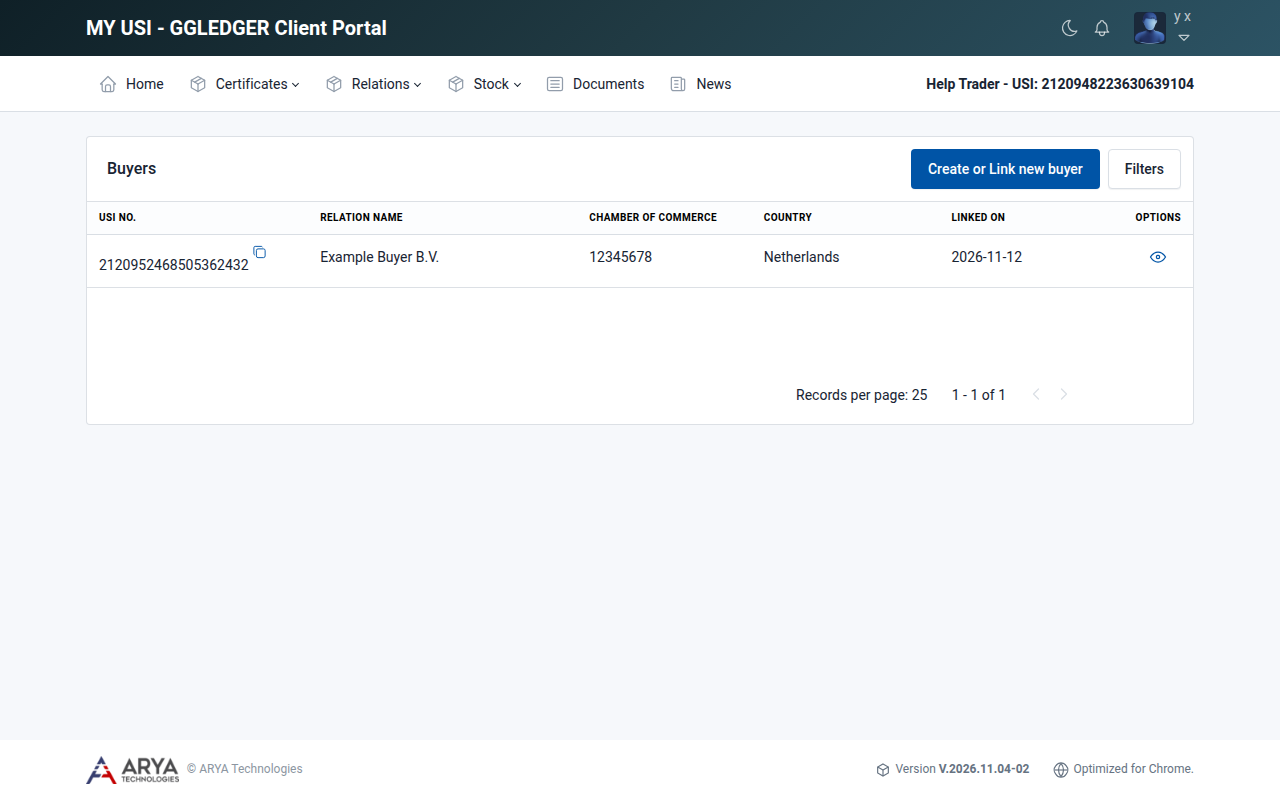
Fig. 10 The buyers list.
There are two ways to add a buyer. If the buyer already has a USI number, link the existing buyer. If not, create the buyer.
Link a buyer that is already registered
Ask the buyer for their USI number. It is shown on the right of the menu bar when they are signed in.
Go to Relations › Buyers and select Create or Link new buyer, or select Link Buyers on the dashboard.
At Already USI registered ?, leave Yes selected.
Enter the buyer’s USI number in Search and select Search.
The details of the company are shown. If the number is not known, the message Invalid USI ID appears. If the company is already your buyer, the message Already linked to your profile appears.
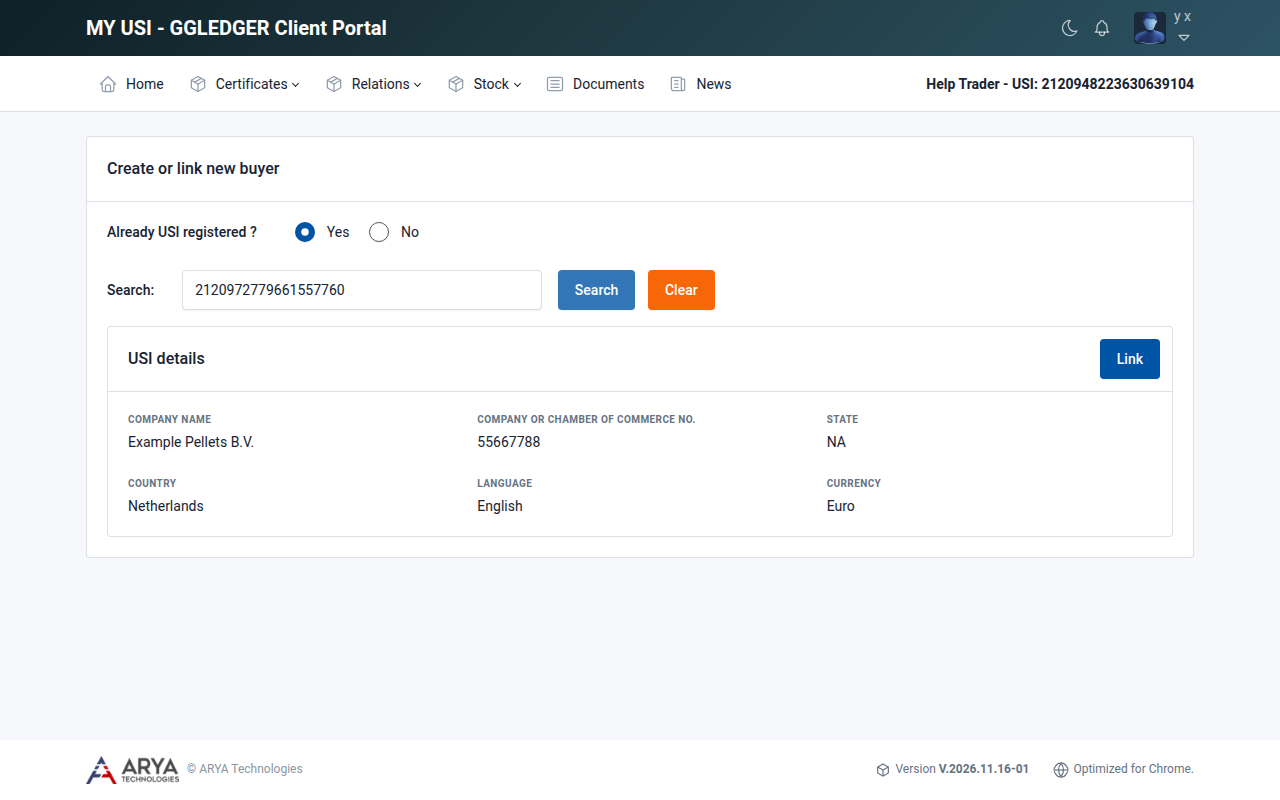
Fig. 11 The company found for a USI number.
Check that this is the right company, select Link and confirm with Yes, link client.
Create a new buyer
Go to Relations › Buyers and select Create or Link new buyer.
At Already USI registered ?, select No.
Fill in the form:
Section
Fields
Company
Legal name, company or chamber of commerce number, tax registration number, default language and default currency.
Address
Registered address, town, district, postal code and country. State and city become available after you choose a country.
Contact person
Salutation, first name, last name, designation, email address, mobile and telephone number.
Required documents
The chamber of commerce registration of the buyer.
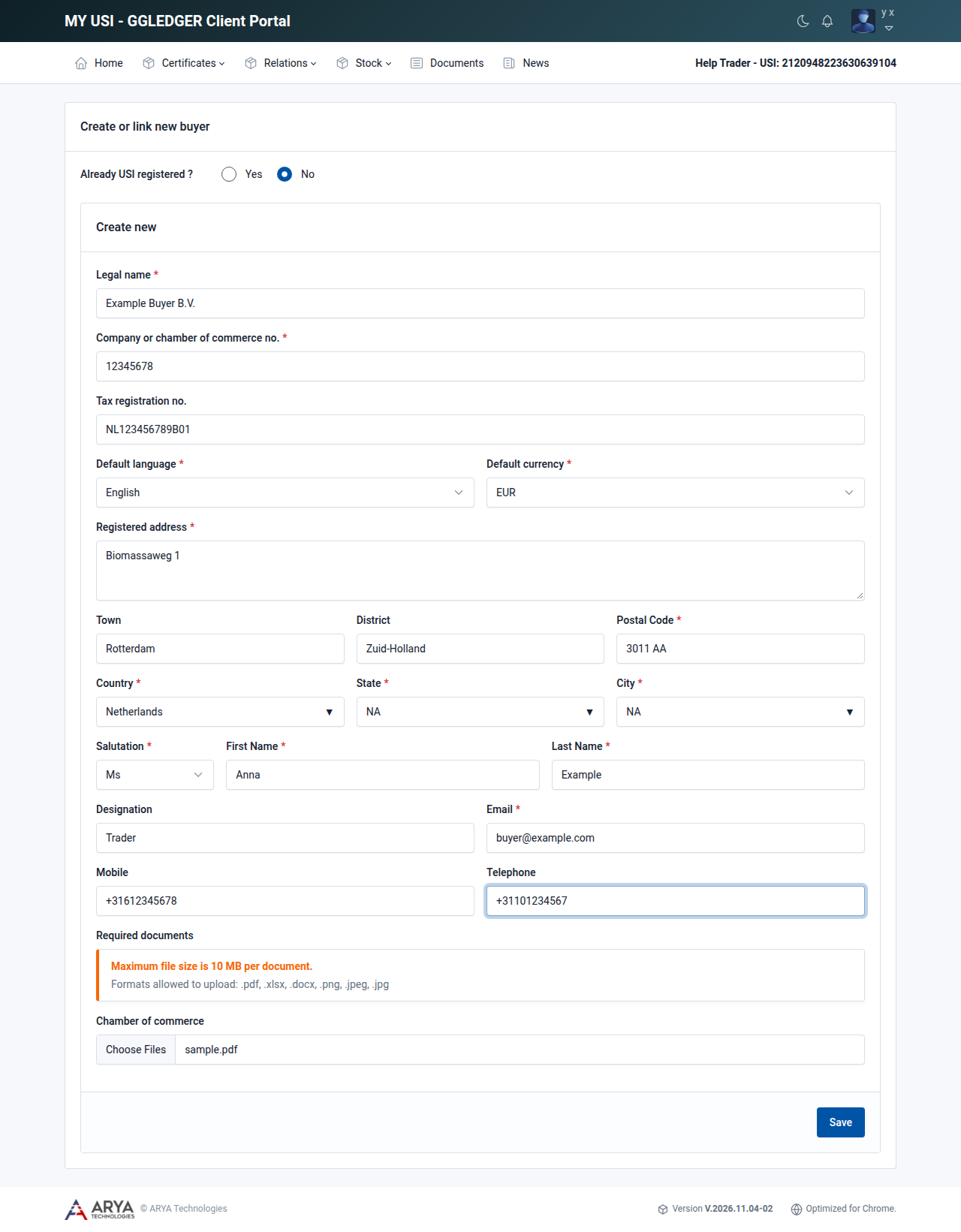
Fig. 12 Creating a new buyer.
Select Save.
The platform confirms that the buyer is linked to your account and shows the USI number the buyer received.
Note
A company can only be registered once. If the combination of registration number and country already exists, the message Registration number with the country is already registered in GGL appears. In that case the company already has a USI number: ask for it and link the buyer instead.
Documents can be at most 10 MB each. The allowed formats are .pdf, .xlsx, .docx, .png, .jpeg and .jpg.
View a buyer
Go to Relations › Buyers.
Select the view icon in the Options column.
The details show the company and contact information. Below it are two tabs:
- Transaction certificates
The transaction certificates you applied for with this buyer.
- Documents
The documents of this buyer, such as the chamber of commerce registration. Select Upload new documents to add one.
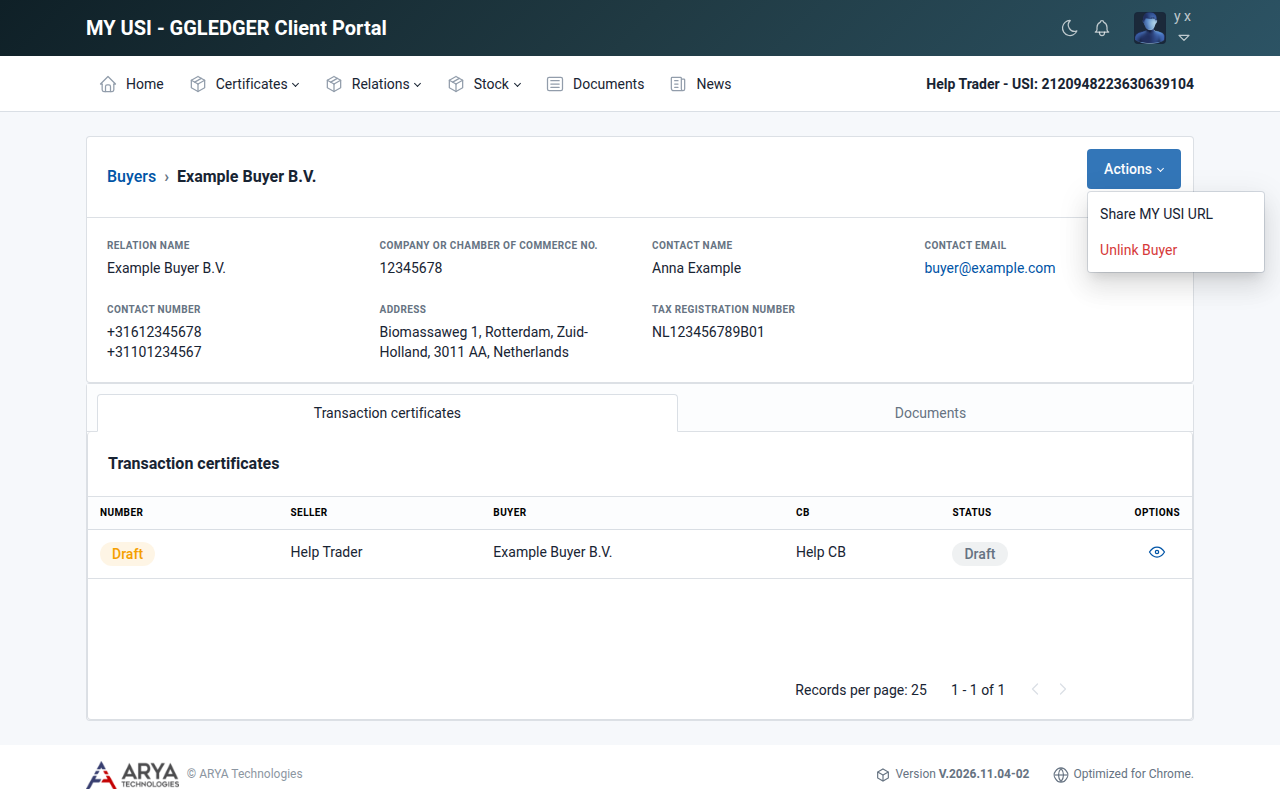
Fig. 13 The details of a buyer with the Actions menu opened.
Send a buyer the address of the platform
Open the details of the buyer.
Select Actions › Share MY USI URL.
Select Send Email.
An email with the address of the platform is sent to the contact email address of the buyer.
Unlink a buyer
You cannot unlink a buyer while you have transaction certificates for that buyer with the status Draft or Applied.
Open the details of the buyer.
Select Actions › Unlink Buyer.
Enter the Reason for unlinking and select Yes, Unlink.
Buyers you have unlinked are listed under Relations › Unlinked buyers, with the date you unlinked them.
Sellers
Relations › Sellers lists the companies that sell to you. You do not add sellers yourself: a company is listed here once it has linked you as its buyer.