Request stock
Before you can sell certified biomass on the platform, the biomass has to be registered as your stock. You do this with a stock request: you list the biomass you hold, attach the evidence, and your Certification Body (CB) approves or declines each quantity. Approved quantities become available stock.
Before you start, make sure that:
you have an active scope certificate for the modules you request stock for;
the suppliers of raw materials you need are linked to your account;
you have the supporting documents at hand as files.
Submit a stock request
Go to Stock › Request and select Request stock, or select Request Stock on the dashboard.
Fill in one line for each lot of biomass. A request has room for ten lines; leave the lines you do not need empty. The table is wider than the page: scroll to the right to reach the last columns.
Column
Field
What to enter
A
Identifier
Your own reference for the lot, for example a lot number. Optional.
B
Raw material
The product, for example Wood Pellets. Choose from the list or type a name.
C
Certified for
The modules the lot is certified for. You can select more than one. Only the modules of your scope certificates are offered.
D
GGL category of biomass
One or more of the categories Cat 1 to Cat 5.
E
FIT/FIP classification
The FIT/FIP classification of the biomass. Only available, and then required, when you selected the FIT/FIP module in column C.
F
Stock from
Where the lot comes from: Own produce, First collection or Endorsed scheme.
G
Country of origin of raw material
The country the raw material comes from.
H
Supplier of raw material
Your own company or one of your linked suppliers of raw materials.
I
Certified amount (MT)
The quantity in metric tonnes, with up to three decimals.
J
GGL claim
GGL certified or GGL controlled.
K
GHG emissions (gCO₂eq/MJ)
The greenhouse gas emissions for cultivation, processing, transport and fuel in use. The total is calculated for you.
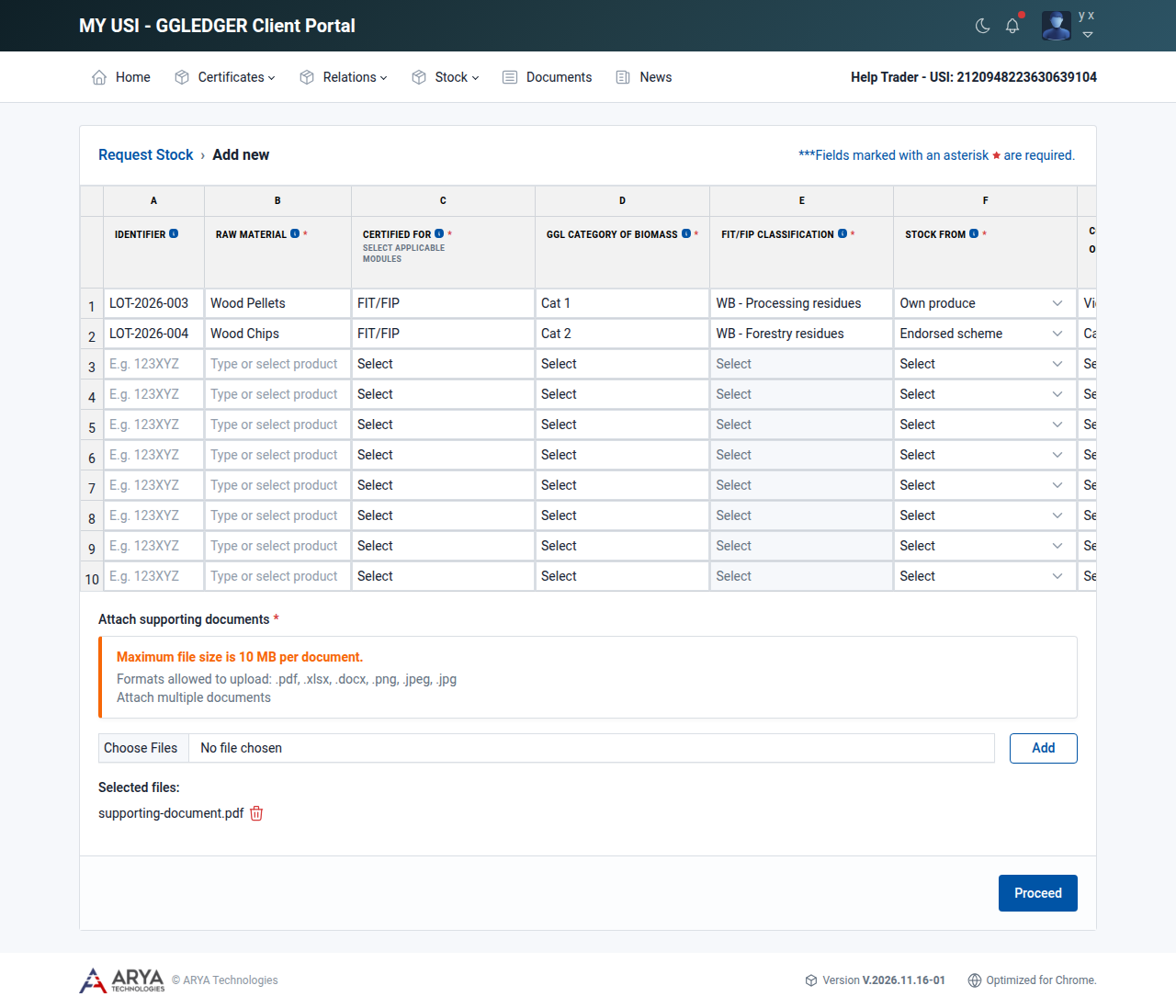
Fig. 15 The stock request form, columns A to G.
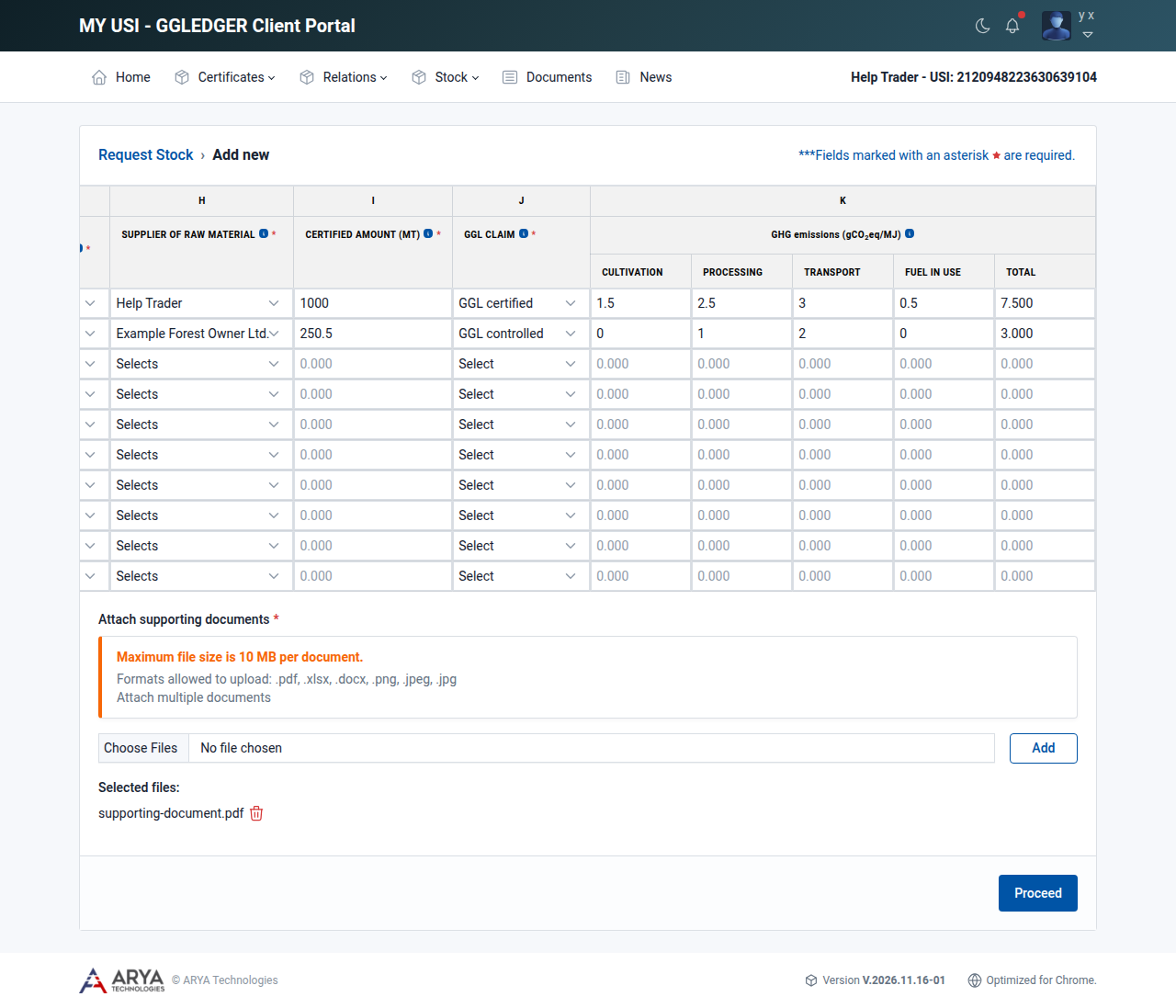
Fig. 16 The stock request form scrolled to the right, columns H to K, with the supporting documents below.
Under Attach supporting documents, choose a file and select Add. Repeat this for each document. The attached files are listed under Selected files; select the bin icon to remove one.
At least one supporting document is required. Documents can be at most 10 MB each. The allowed formats are .pdf, .xlsx, .docx, .png, .jpeg and .jpg.
Select Proceed.
A preview of the request opens. A line that is not complete is marked This row contains empty or incorrect values. Select Back to correct it.
For each line with Stock from set to Endorsed scheme, enter the name of the endorsed scheme in the field below it, for example SBP. You cannot submit the request while this field is empty.
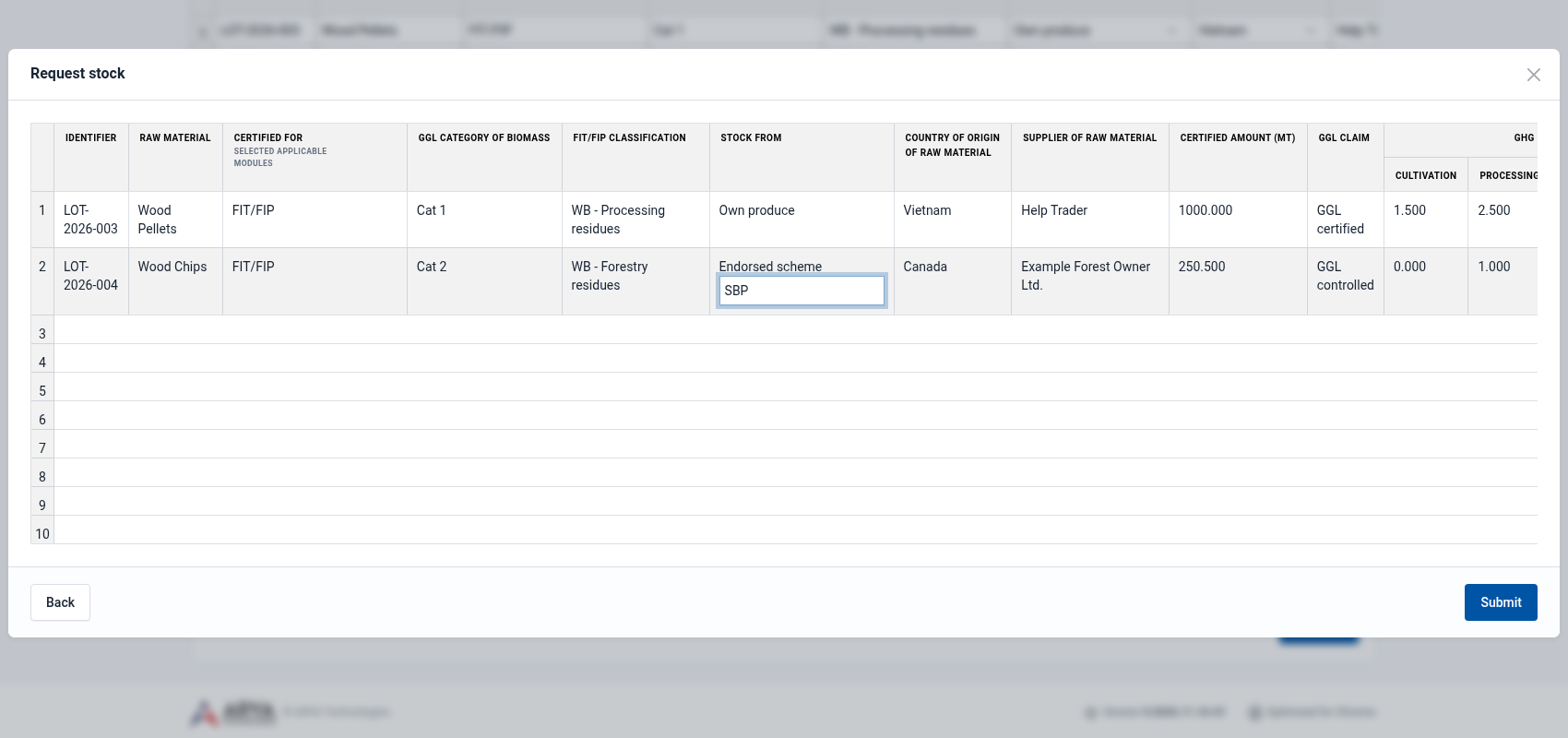
Fig. 17 The preview of a stock request. The second line comes from an endorsed scheme, so the name of the scheme is entered here.
Check the preview and select Submit.
The request is sent to your Certification Body.
Follow your stock requests
After you submit, the platform shows Stock requested successfully and your Certification Body receives an email asking it to review the request.
Go to Stock › Request to follow your requests. The list shows each request with the date, the CB that handles it, the requested quantity, the quantities the CB approved and declined, and the status.
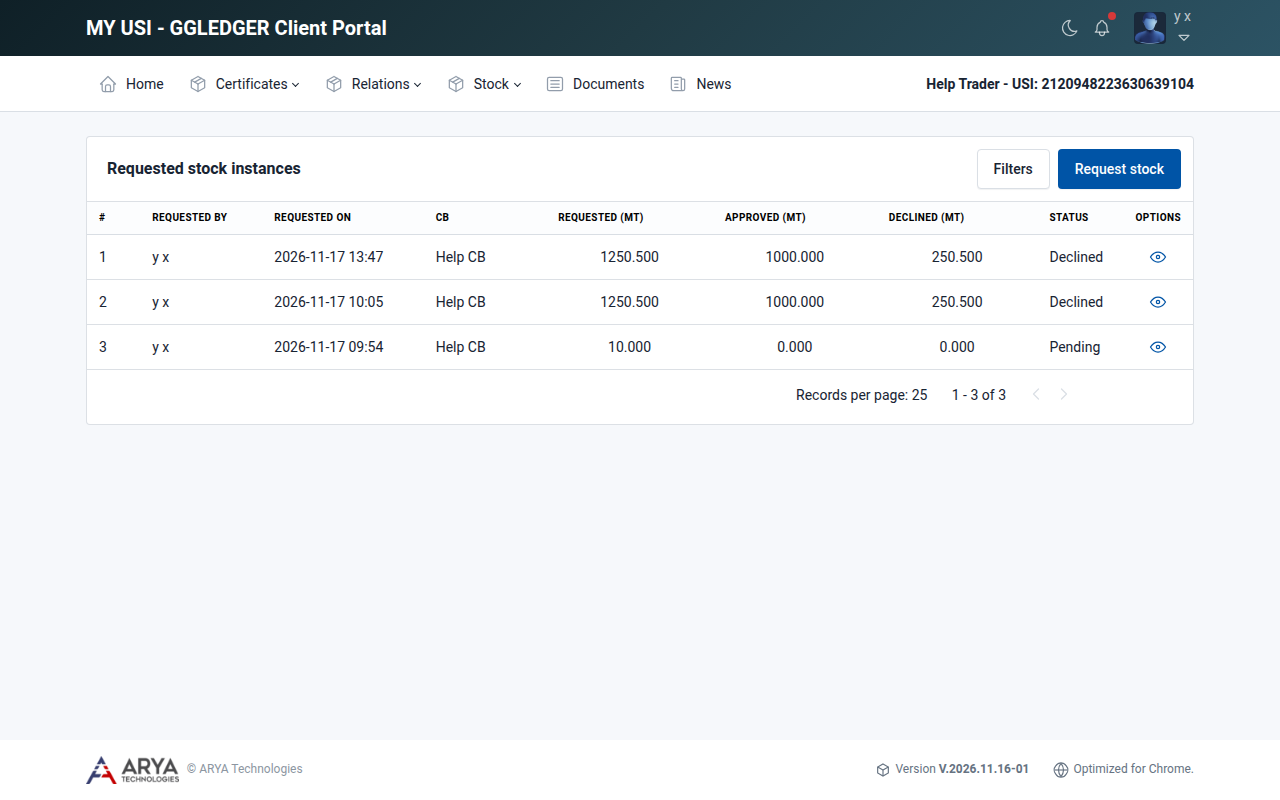
Fig. 18 The list of stock requests.
Select the view icon in the Options column to see the lines of a request. The CB decides on each line separately, so the status is shown per line: Pending, Approved or Declined. For a declined line, the remark of the CB is shown below the status.
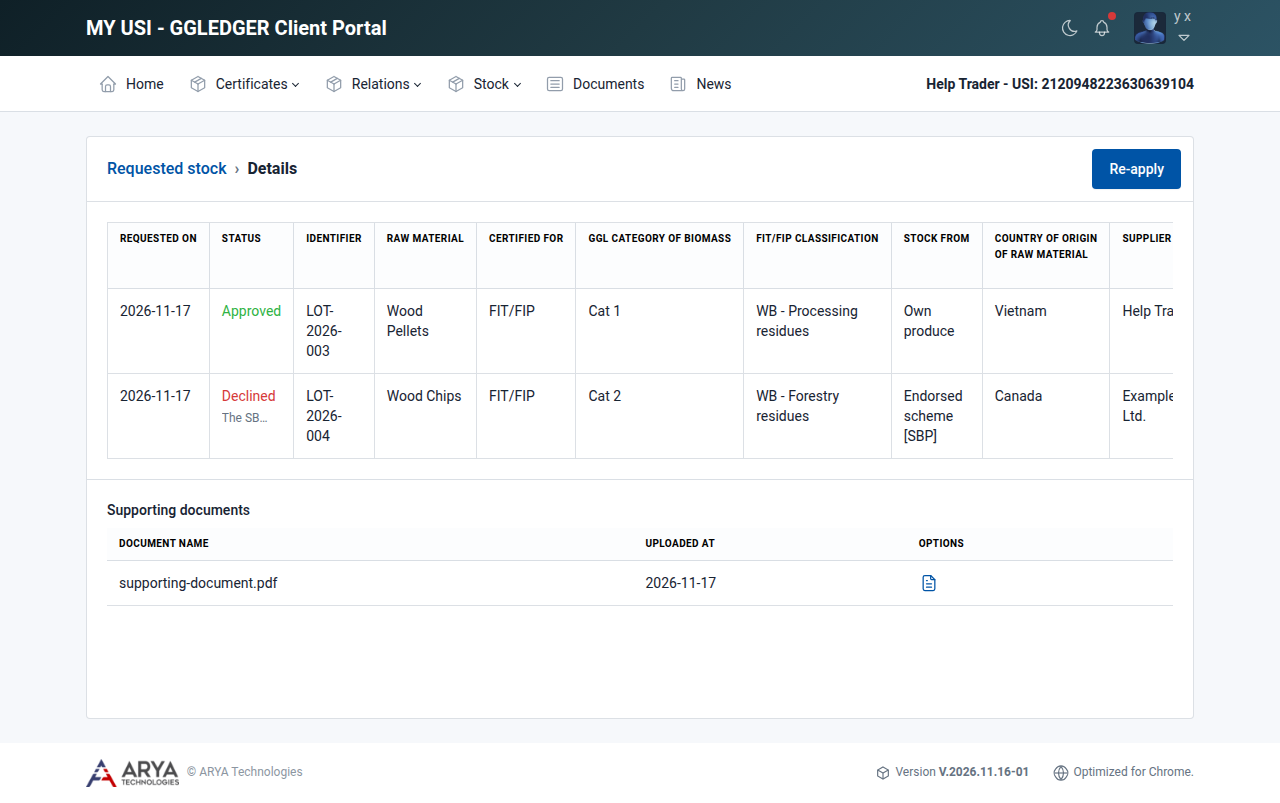
Fig. 19 A stock request of which one line was approved and one was declined.
When the CB has decided on all lines, you receive an email with the subject Stock Request Processed. The approved quantities are added to your available stock.
Re-apply for declined lines
If the CB declined one or more lines, you can correct them and request them again.
Open the request and select Re-apply.
A new stock request opens with the declined lines filled in.
Correct the lines, attach the supporting documents again and continue as described in Submit a stock request, from step 3.
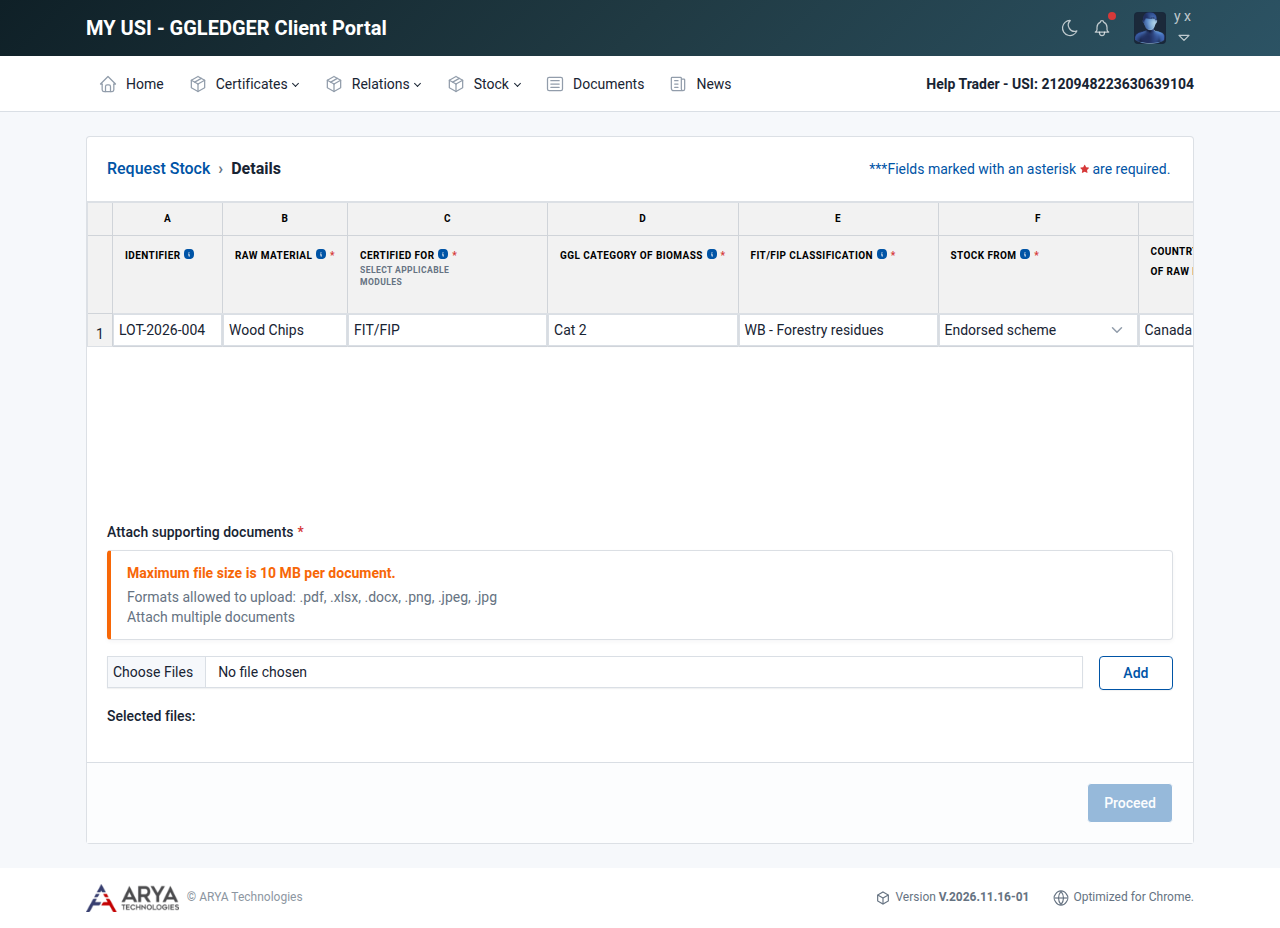
Fig. 20 Re-applying for a declined line.