View your scope certificates
A scope certificate (SC) states for which module and which categories of biomass you are certified. Your Certification Body adds your scope certificates to the platform; you cannot add or change them yourself.
You need an active scope certificate for a module before you can request stock or apply for a transaction certificate under that module.
View a scope certificate
Go to Certificates › Scope.
The list shows each certificate with its number, CB, module, validity period, date of issue and status.
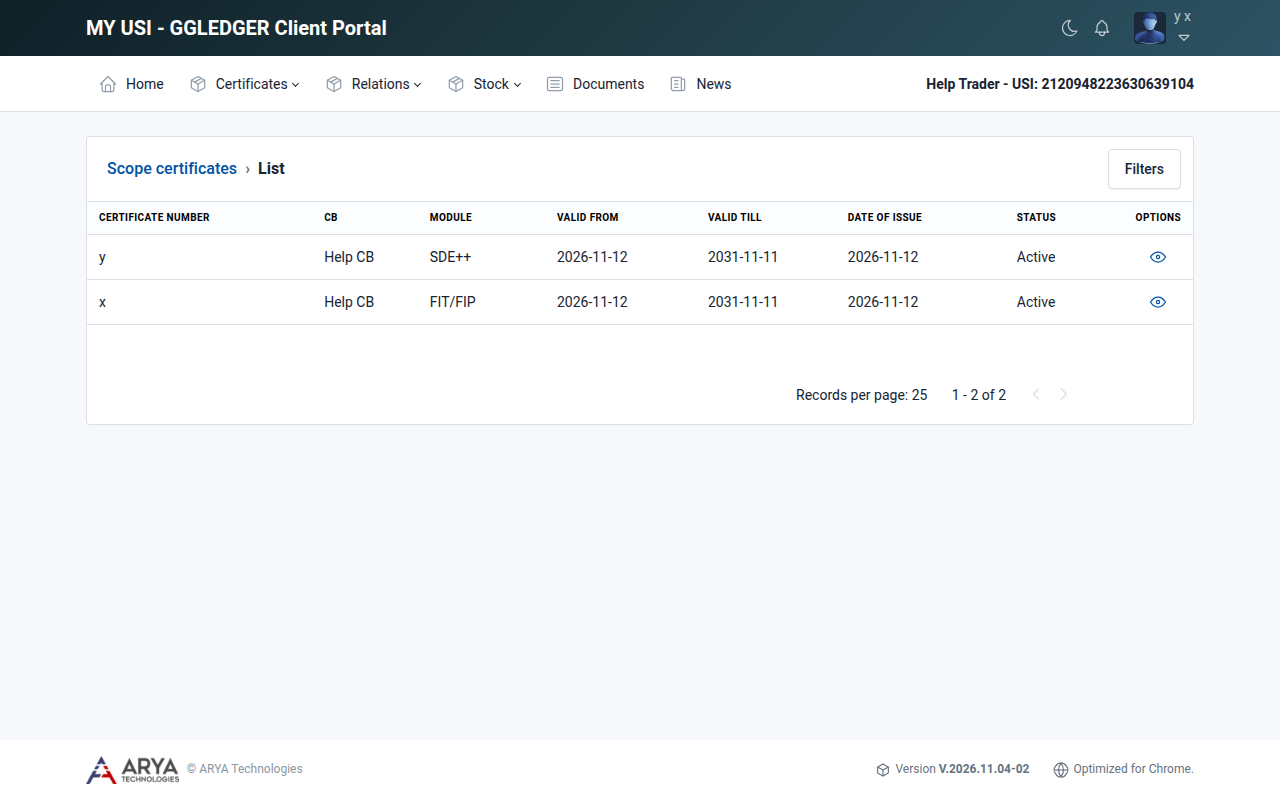
Fig. 8 The scope certificates list.
Select the view icon in the Options column.
The details show:
the client and the Certification Body;
the validity period, the date of issue and the status;
the module, with the GGL module instructions and GGL standards that apply;
the GGL categories of biomass the certificate covers;
the certified activity;
a copy of the certificate, which you can download.
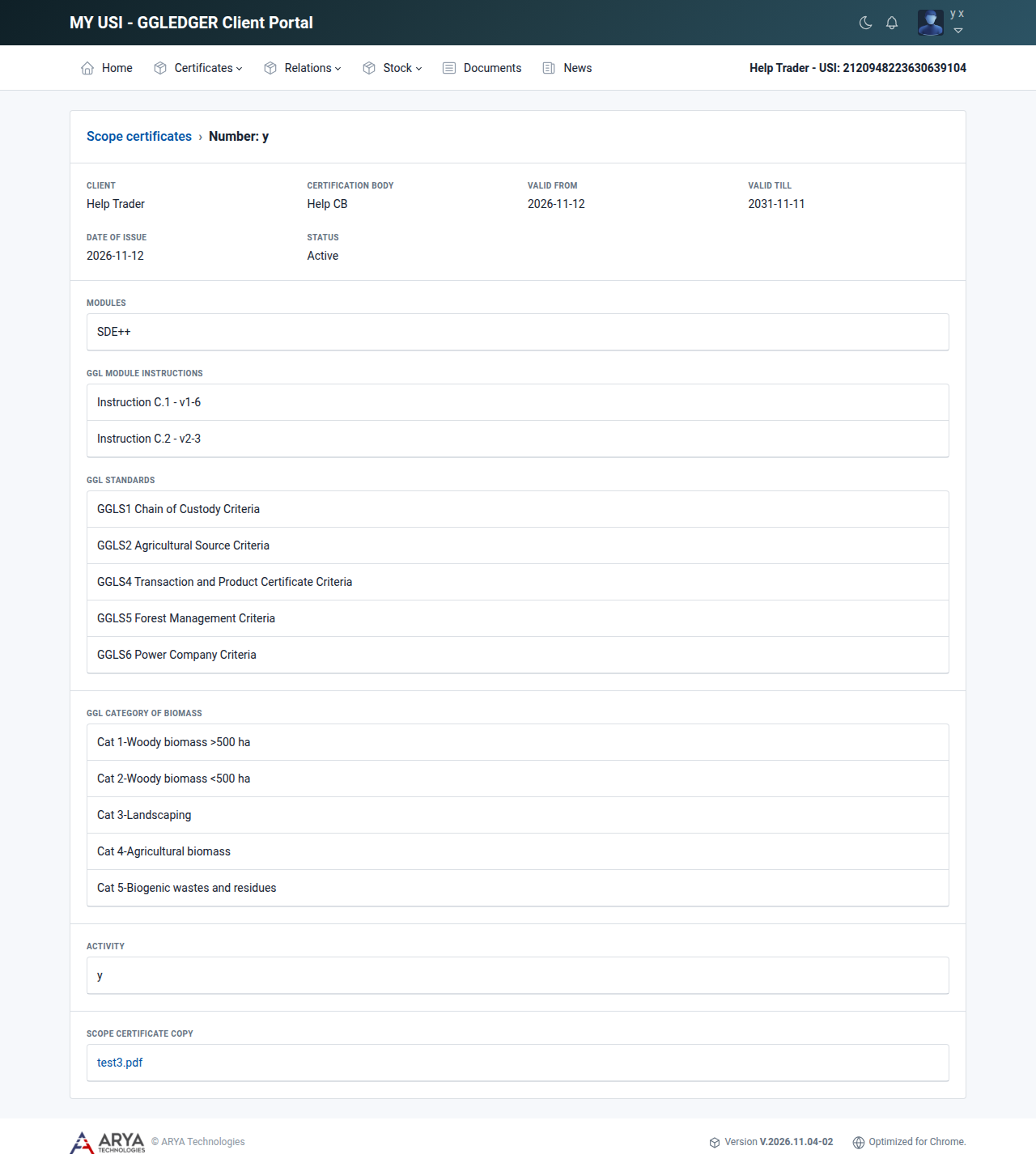
Fig. 9 The details of a scope certificate.
See which scope certificates are about to expire
On the dashboard, select Expiring Scope Certificates. Contact your Certification Body in good time to renew a certificate that is listed here.