Self-consumed stock and product certificates
Stock you consume yourself, for example to generate electricity or heat, is drained as self-consumed from your available stock. For self-consumed stock you can apply for a product certificate (PC), which your Certification Body approves.
View your self-consumed stock
Go to Stock › Self consumed, or select Self Consumed Stock on the dashboard.
Each line shows the reference, the product, the category, the seller, the modules and the consumed quantity in metric tonnes. The last column shows Apply while you have not applied for a product certificate for the line, and a link to the product certificate once you have.
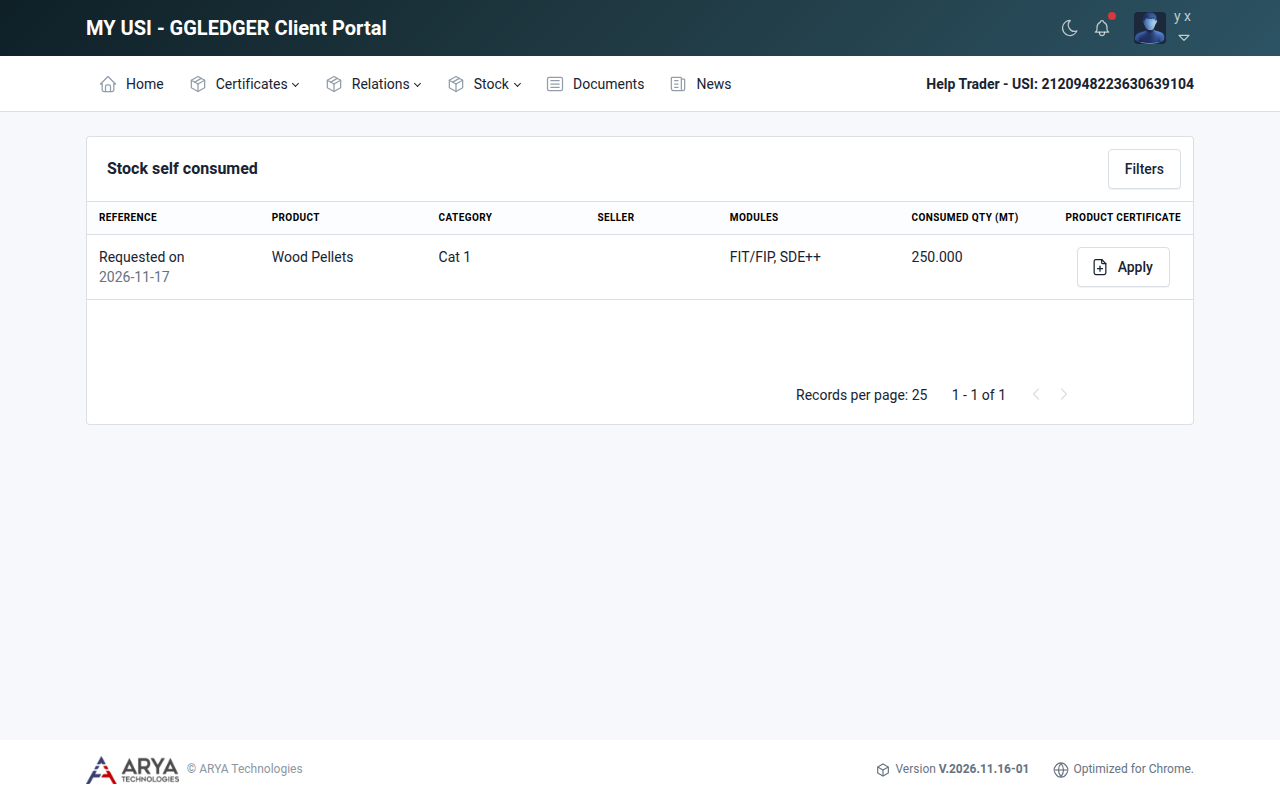
Fig. 24 The self-consumed stock list.
Select Filters to filter the list by category, lot or module.
Apply for a product certificate
Go to Stock › Self consumed and select Apply on the line.
You can also go to Certificates › Product and select Apply, which takes you to the same list.
The certification body, producer, product, category, quantity, stock reference and shipment details are filled in from the stock. Enter:
Field
What to enter
Audit date
The date of the audit that covers the production.
Dispatch country
Start typing and choose the country from the list.
Amount of biomass used
The lower heating value (LHV) of the biomass, in GJ per tonne. The quantity in MT is filled in for you.
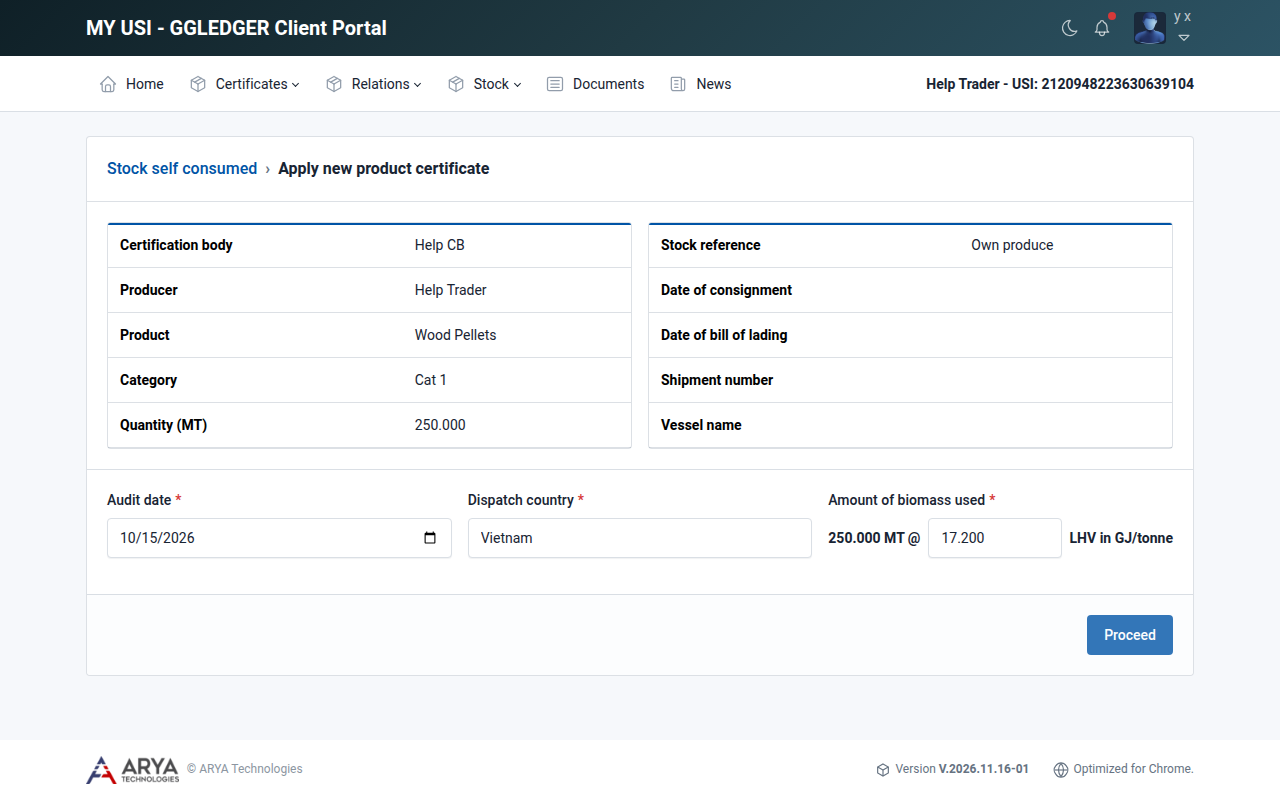
Fig. 25 Starting a product certificate application.
Select Proceed. The application is created and guides you through five steps. Your entries are saved each time you select Proceed.
The product certificate covers all the modules the drained stock is certified for. For stock certified for FIT/FIP and SDE++, for example, the scope of the certificate is FIT/FIP, SDE++. You cannot choose a module yourself.
Step 1: Consumed stock
The details you entered on the first page.
Step 2: Energy
Choose the Energy type: Electricity or Heat.
Enter the Production start date and Production end date of the period in which you produced the energy.
Enter the Amount of energy produced in MWh.
Select Proceed.
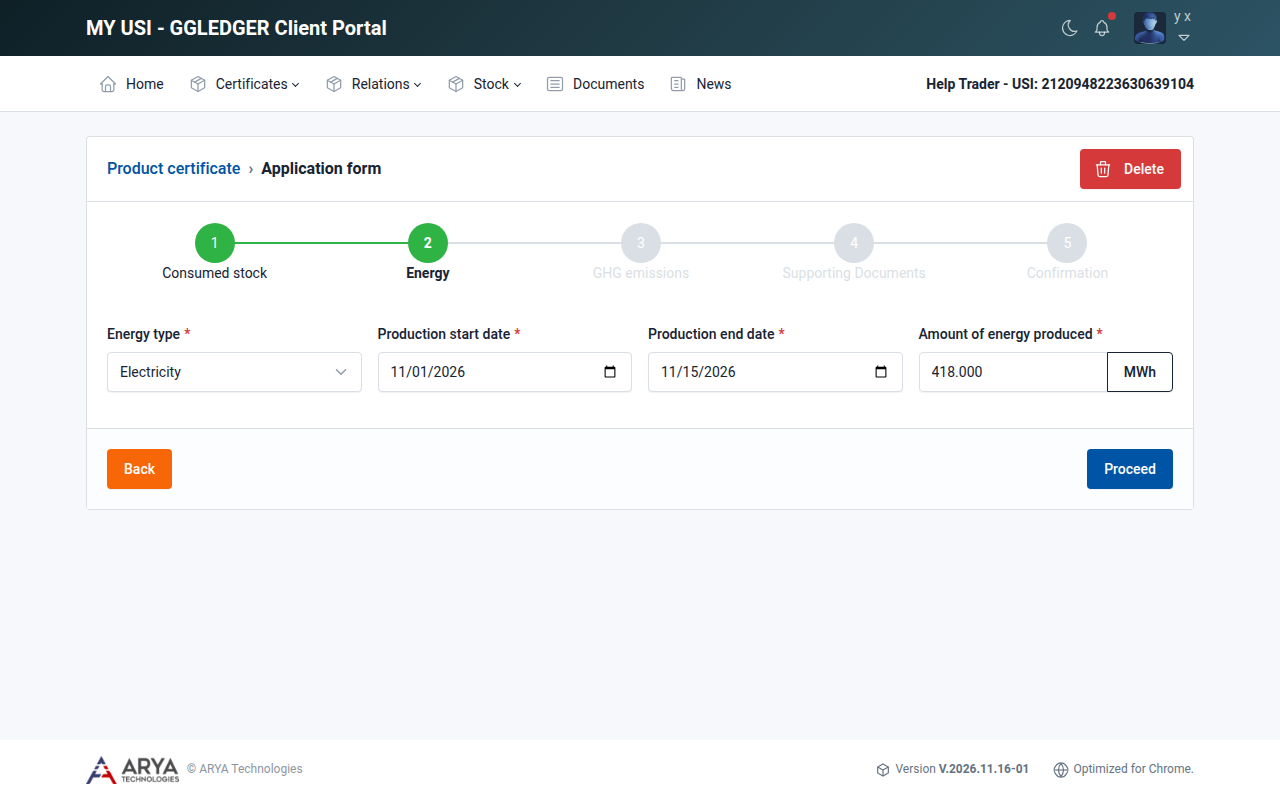
Fig. 26 Step 2, Energy.
Step 3: GHG emissions
The GHG emissions of the stock are filled in. You can add emissions for transport and for fuel in use that occurred after you received the stock. The total is calculated for you. Select Proceed.
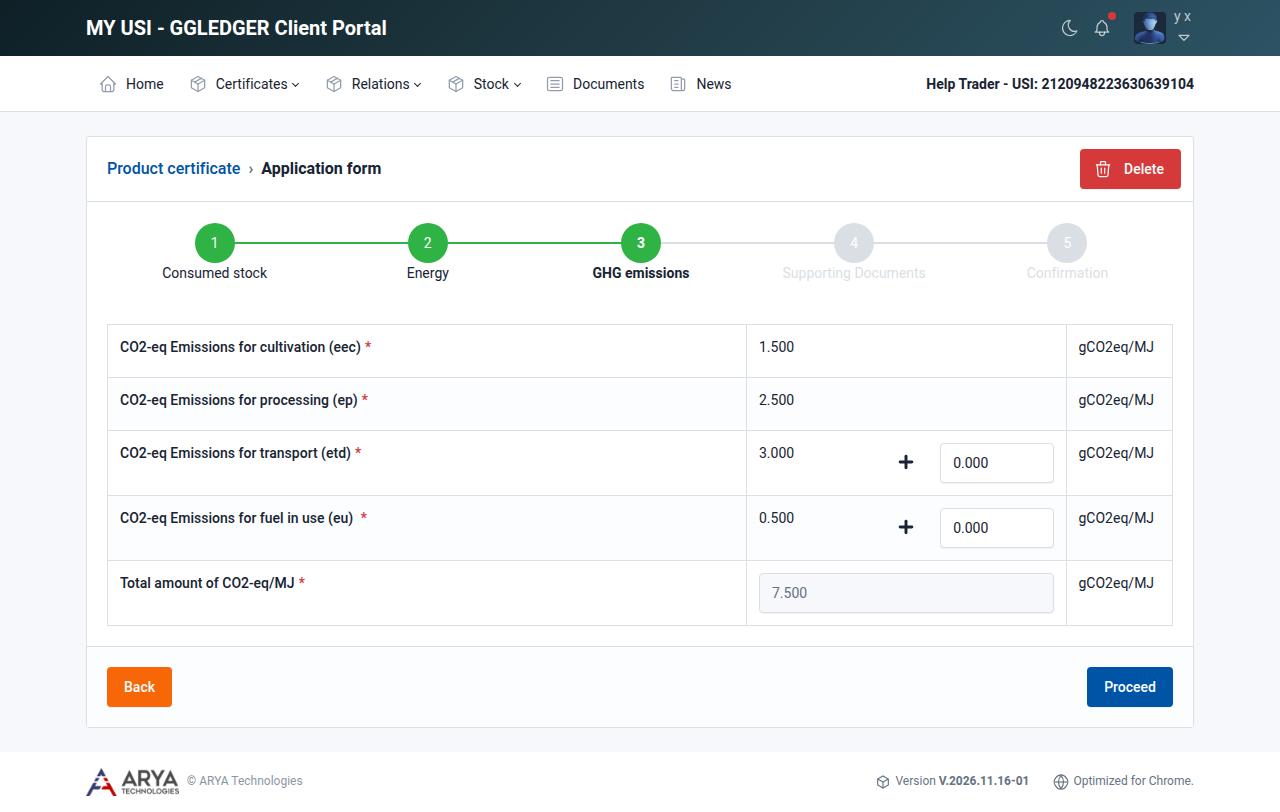
Fig. 27 Step 3, GHG emissions.
Step 4: Supporting documents
An invoice and a transport document are required.
Choose the Document type and the file, and select Upload.
Repeat this for each document.
Select Proceed.
Step 5: Confirmation
Read the terms and conditions.
Select Preview to see the product certificate as it will be issued.
Select Confirm and submit, select I accept the terms and condition and select Submit.
After you submit, no changes are possible. The platform shows Product certificate applied successfully and the application has the status Applied.
While the application is not yet submitted, you can delete it with Delete in the top right corner.
View your product certificates
Go to Certificates › Product, or select Product Certificates on the dashboard.
Each line shows the certificate number, the product, the scope, the consumed quantity in metric tonnes, the energy type, the energy in MWh and the status: Draft, Applied, Approved, Declined or Deleted.
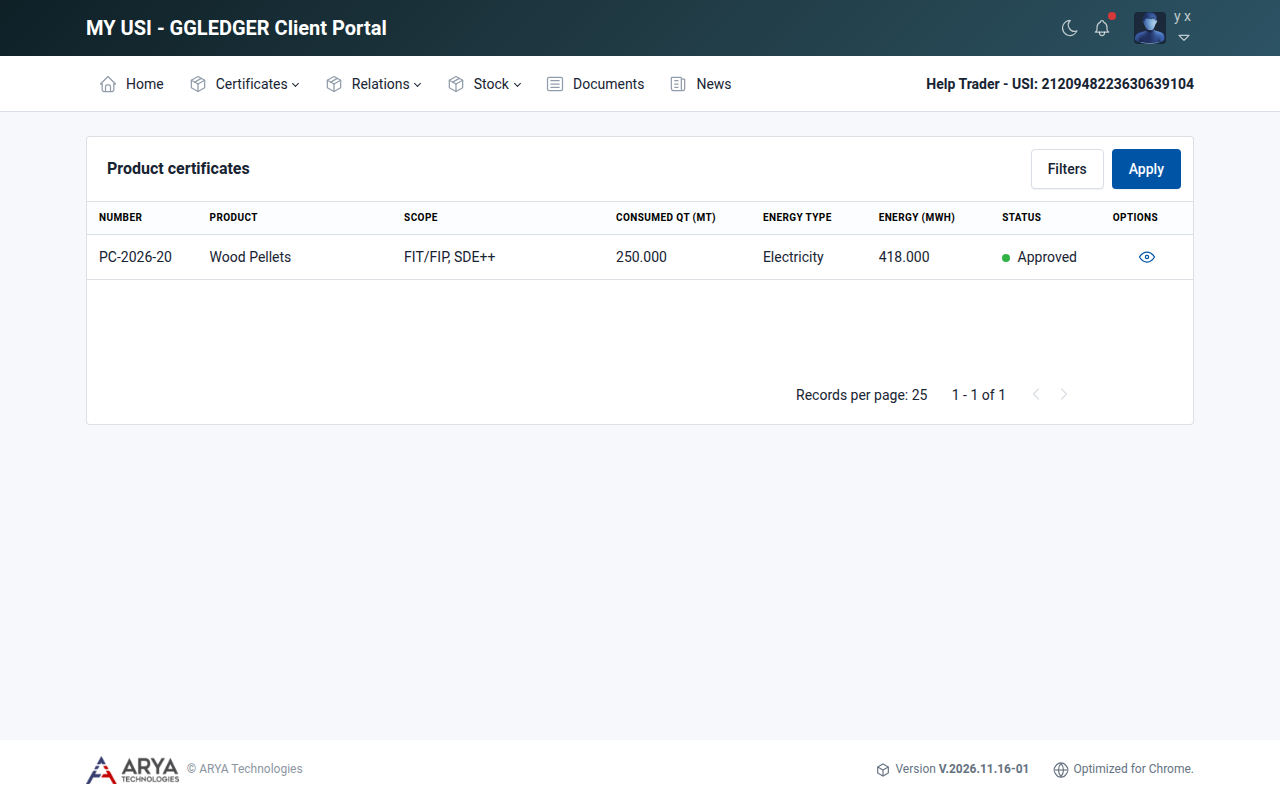
Fig. 28 The product certificates list.
Select Filters to filter the list by product, energy type, status or module.
When your Certification Body approves the application, you receive an email with the subject Your Product Certificate Application Has Been Approved, and the certificate gets its number. Open the certificate and select Download PC to download it.
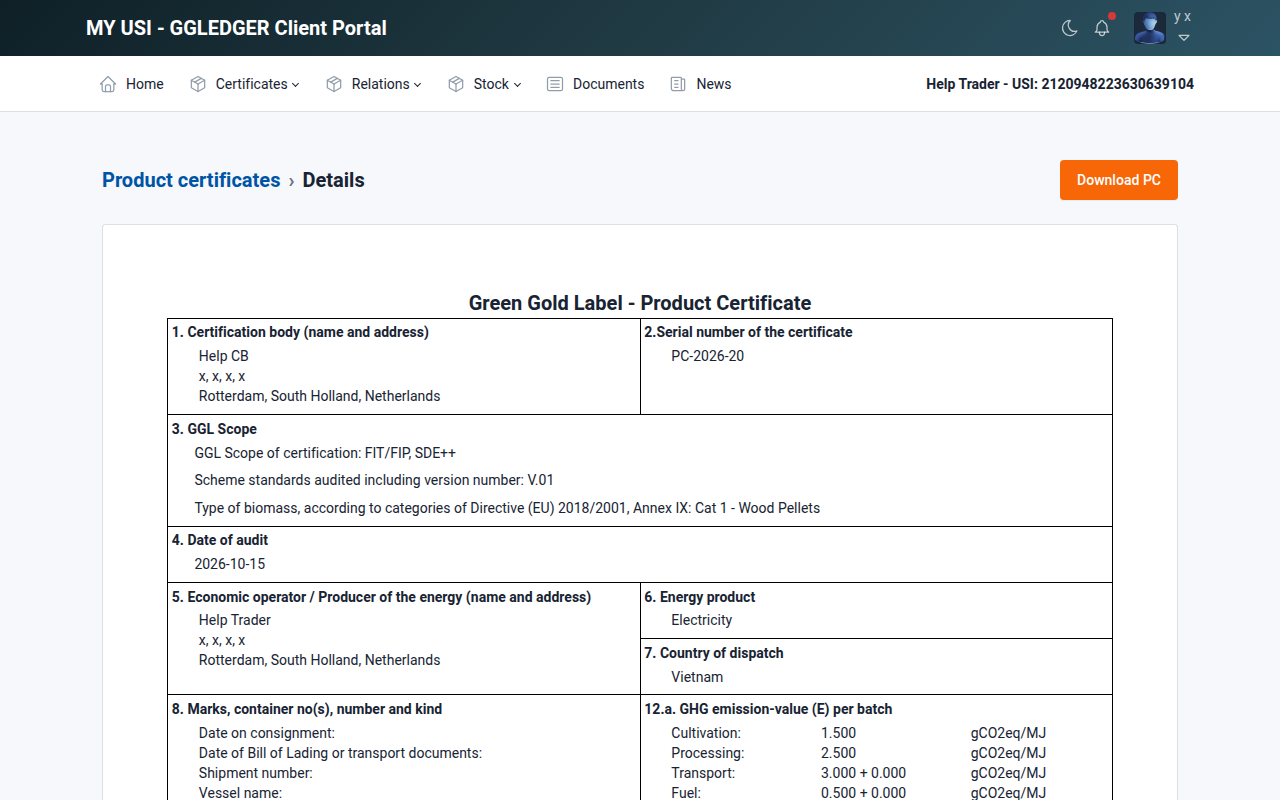
Fig. 29 An approved product certificate.