Follow your transaction certificates
Find a transaction certificate
The transaction certificates you applied for are under Certificates › Transaction, grouped by status:
Menu item |
Shows |
|---|---|
Draft |
Applications you started but did not submit yet. |
Applied |
Applications you submitted that your Certification Body has not approved yet, including those with objections. |
Approved |
Transaction certificates your Certification Body approved. |
All |
All of the above. |
Each line shows the number, module, seller, buyer, Certification Body, date and status. Select the view icon in the Options column to open a transaction certificate.
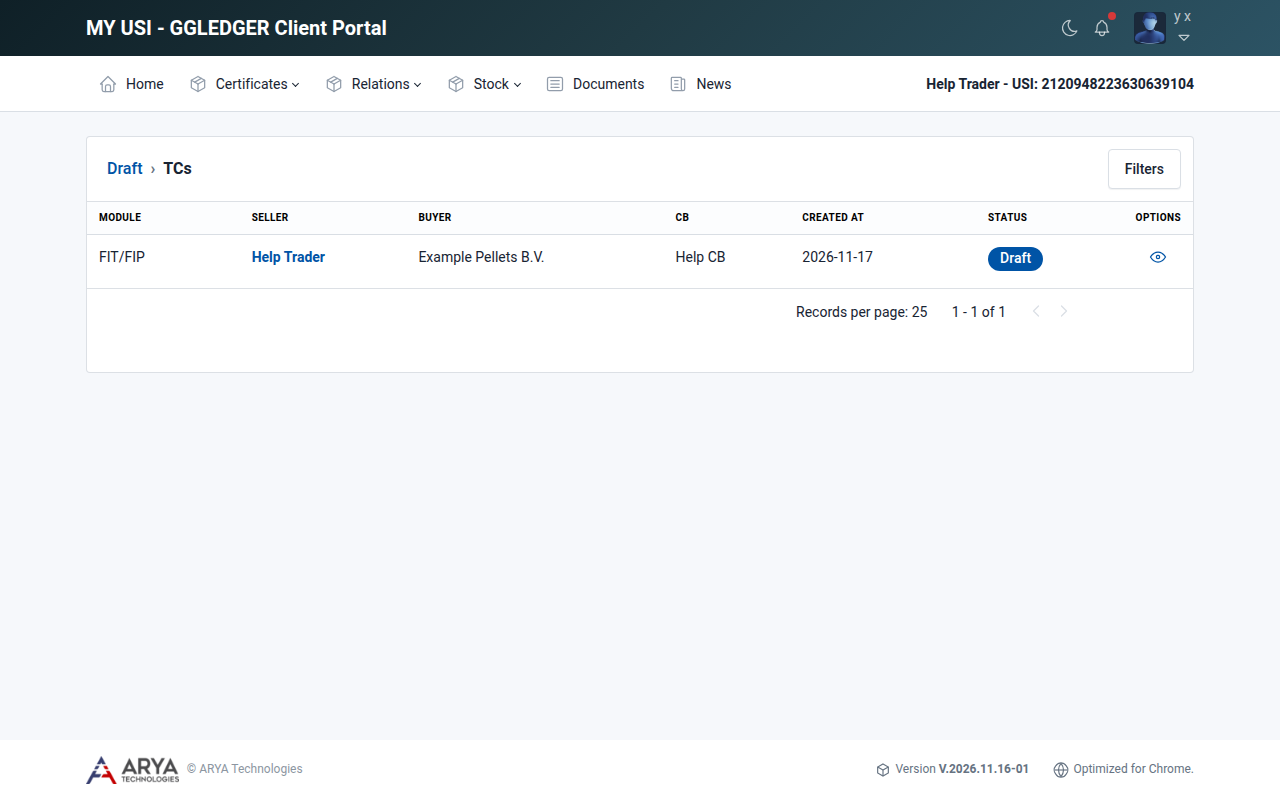
Fig. 43 The list of draft transaction certificates.
Continue a draft
Go to Certificates › Transaction › Draft.
Select the view icon of the application.
The application opens at the step where you stopped. Continue as described in Apply for a transaction certificate.
Delete a draft
Open the draft.
Select Delete in the top right corner.
Confirm with Delete.
Respond to an objection
Your Certification Body can raise an objection on a part of your application, for example the transport details. You then receive an email with the subject TC: Objection raised, and the list under Certificates › Transaction › Applied shows the number of objections in the Status column.
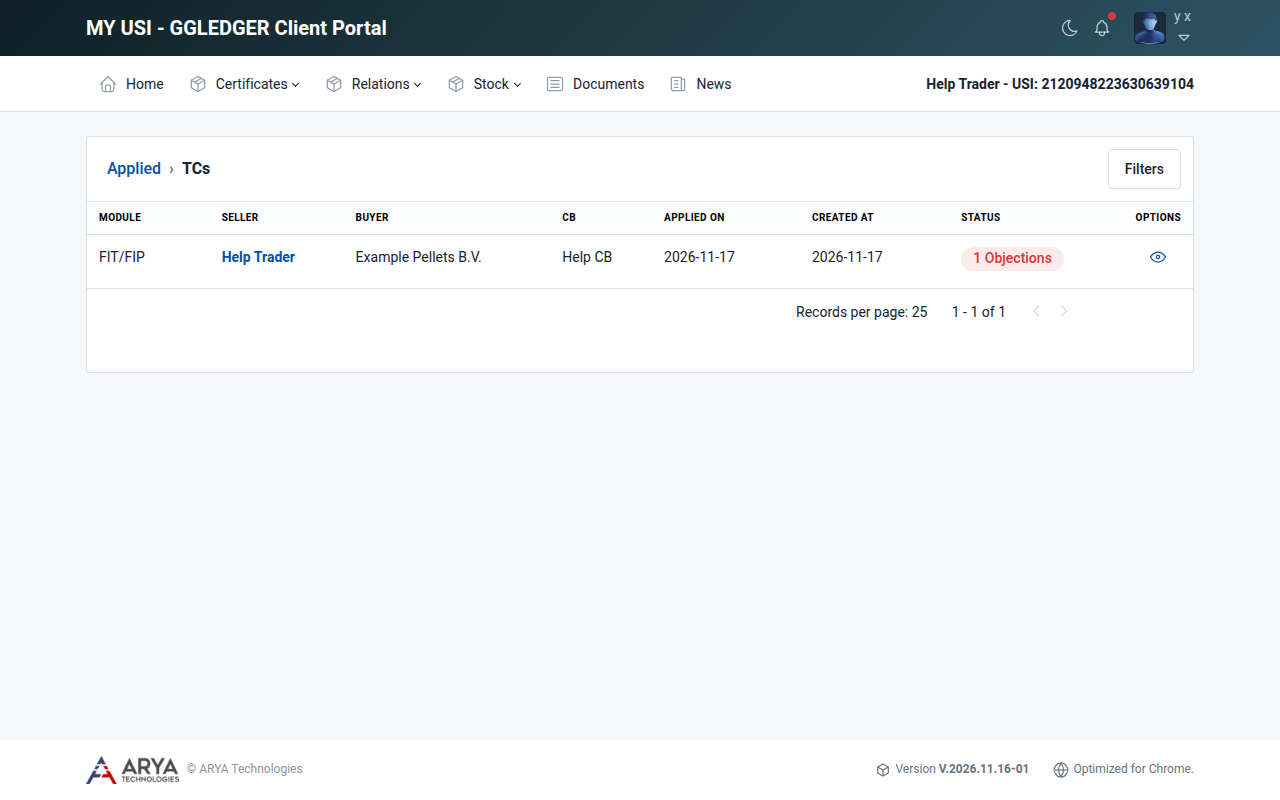
Fig. 44 An application with an objection.
Go to Certificates › Transaction › Applied and open the application.
Select Proceed to go through the steps. A step with an objection shows Objections with a red number.
Correct the data in the step if needed, and select Proceed to save it.
Go back to the step, select Objections, enter your response under Add your comment and select Save comment.
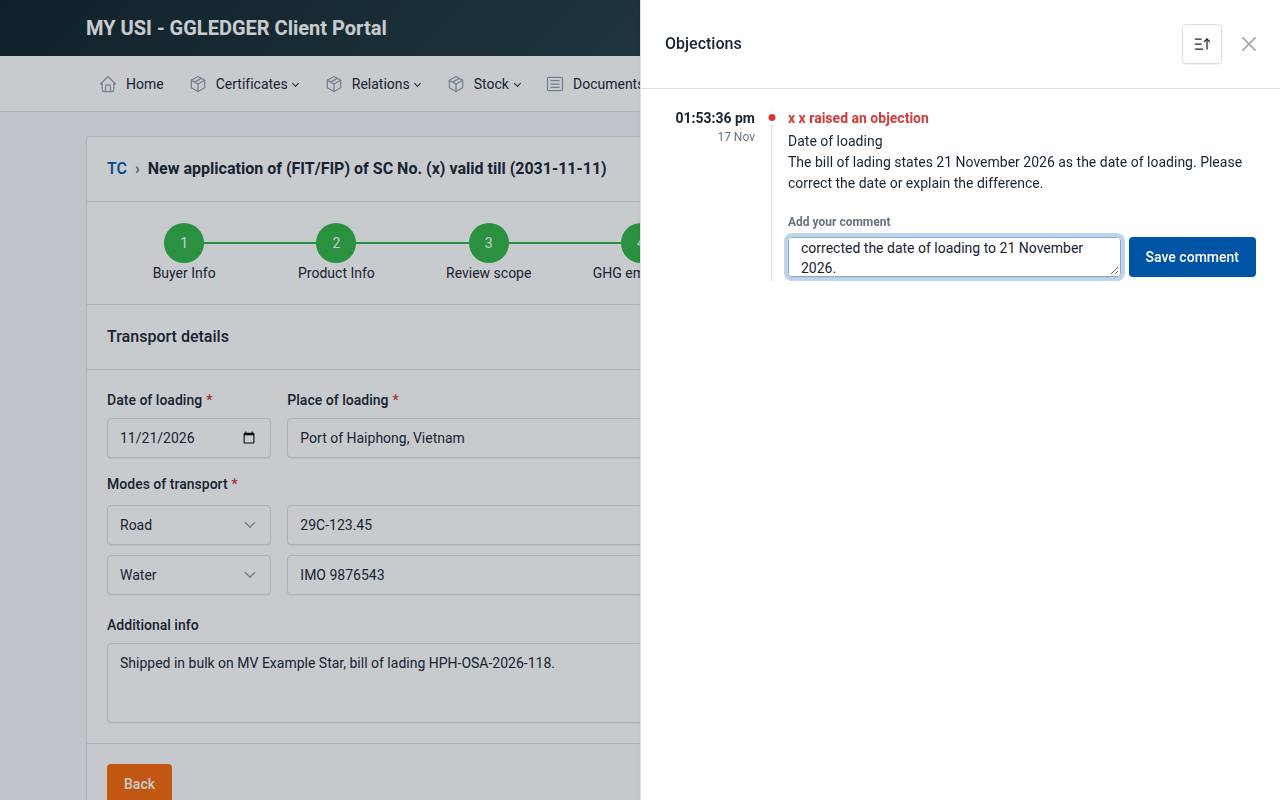
Fig. 45 Responding to an objection.
Repeat this for each objection.
On the last step, select Re-apply, select I confirm that objection responses are complete and ready for review and select Re-apply.
The platform shows TC re-applied successfully, and your Certification Body receives an email that you responded. When the CB has reviewed your response, it closes (withdraws) the objection and you receive an email about it. The CB can then approve the application.
Approved transaction certificates
When your Certification Body approves the application, you receive an email with the subject Transaction Certificate Approved. The certificate gets a TC number, and the CB can add its own reference as the CB number.
A few minutes later the certificate is issued as a PDF document with a blockchain QR code. You then receive an email that the certificate is available for download, and a copy is mailed to the buyer.
To download the certificate, open it under Certificates › Transaction › Approved and select Download TC, or select the download icon in the list under Stock › Outgoing.
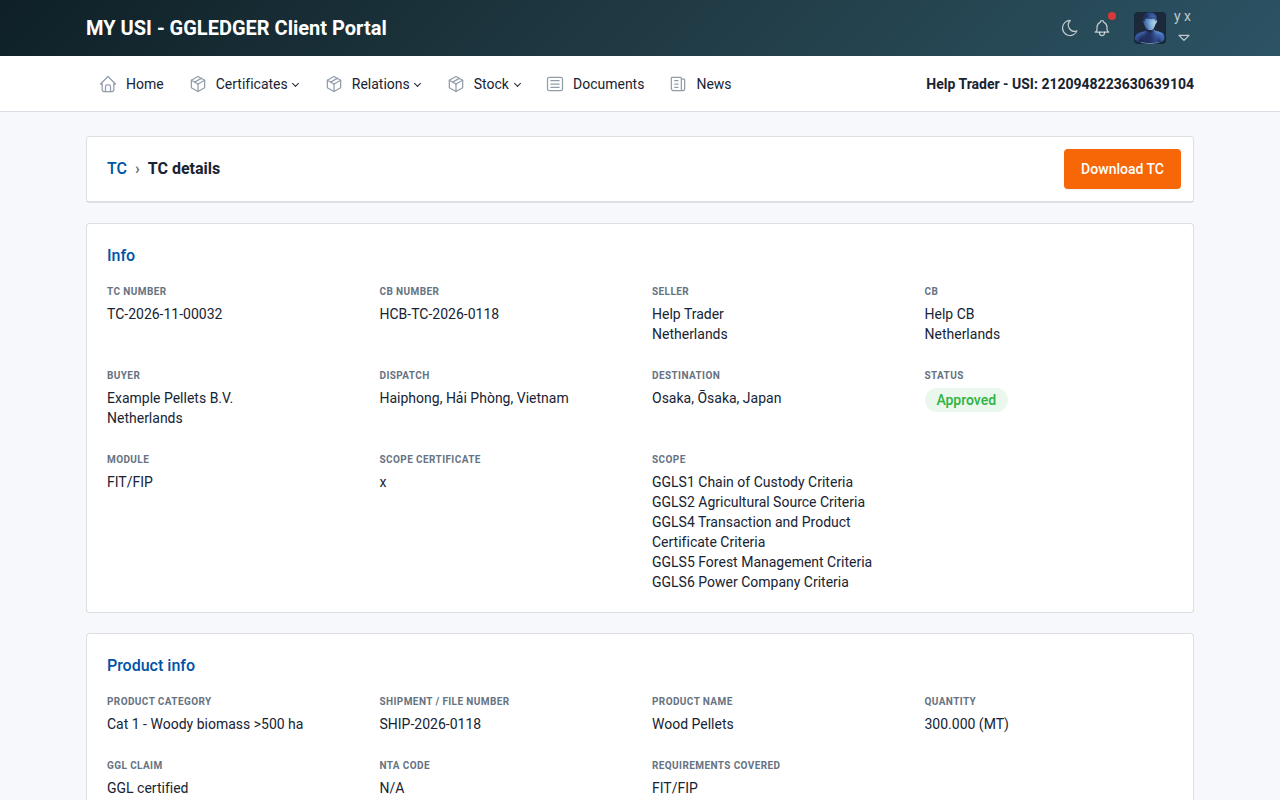
Fig. 46 An approved transaction certificate.
Incoming and outgoing transaction certificates
- Stock › Incoming
The approved transaction certificates for biomass you bought, with the seller, product, quantity and date of issue. The quantity is added to your available stock, with the TC number as its reference.
- Stock › Outgoing
The approved transaction certificates for biomass you sold.
In both lists, select the download icon to download the certificate.
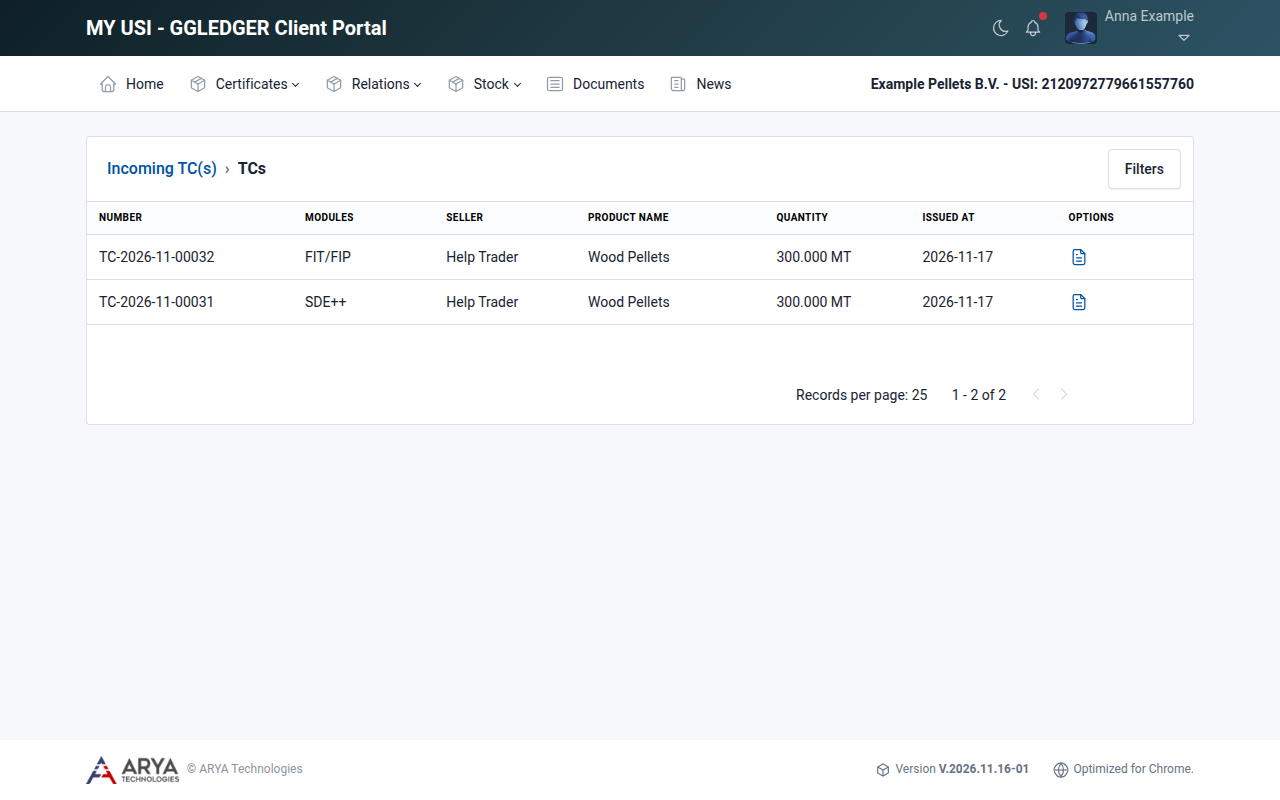
Fig. 47 The incoming transaction certificates of the buyer.
Both lists are also available from the dashboard, as Incoming TC(s) and Outgoing TC(s).