Manage your Certification Body
Your Certification Body (CB) issues your scope certificates, approves your stock requests and approves your transaction certificates. You can only work on the platform while you are linked to a CB.
Go to Relations › CBs to see the CB you are linked to, with its USI number, the status of the link and the date the link last changed.
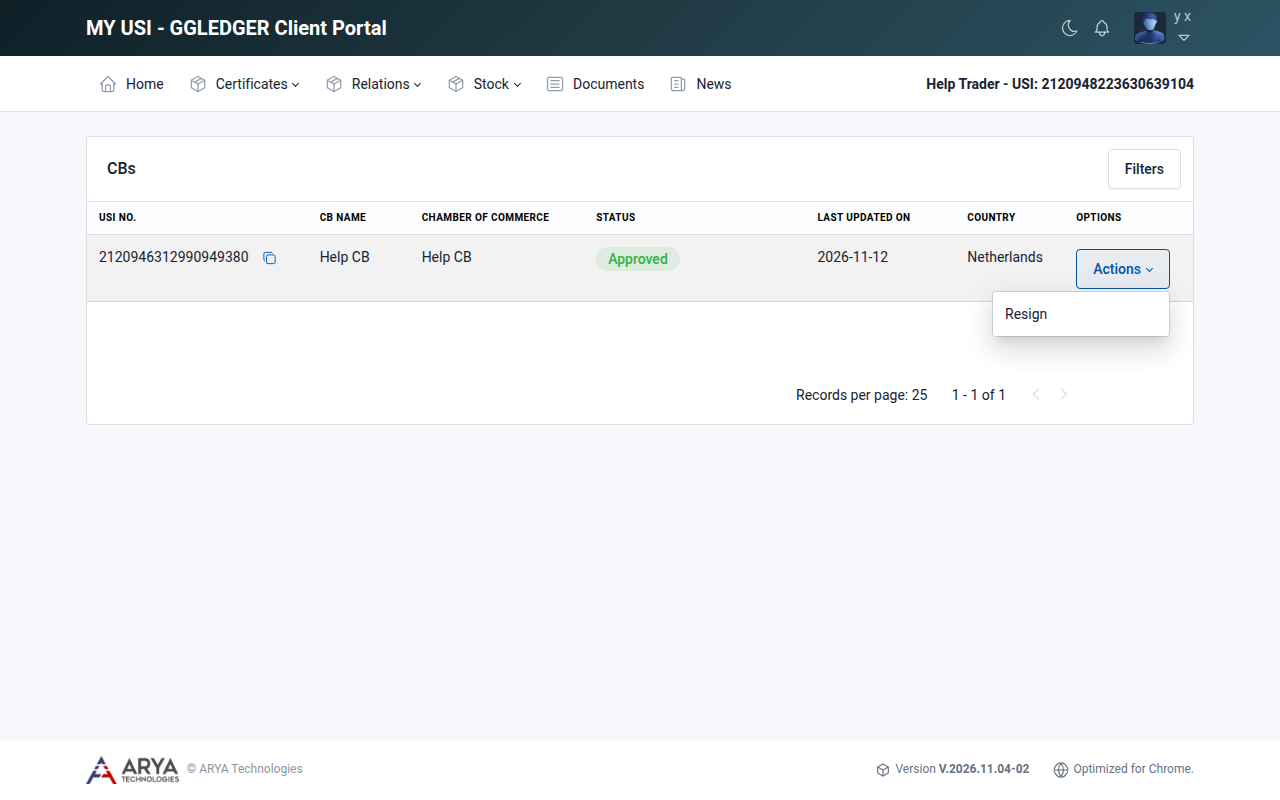
Fig. 6 The CBs list with the Actions menu opened.
Approve or reject a Certification Body
When a CB registers you as its client, it asks you to confirm the link. The request appears in the CBs list with the status Pending. Until you have answered it, the platform opens the CBs list when you sign in, with the message Approve your CB request before proceeding further.
Go to Relations › CBs.
In the row of the CB, select Actions and choose Approve or Reject.
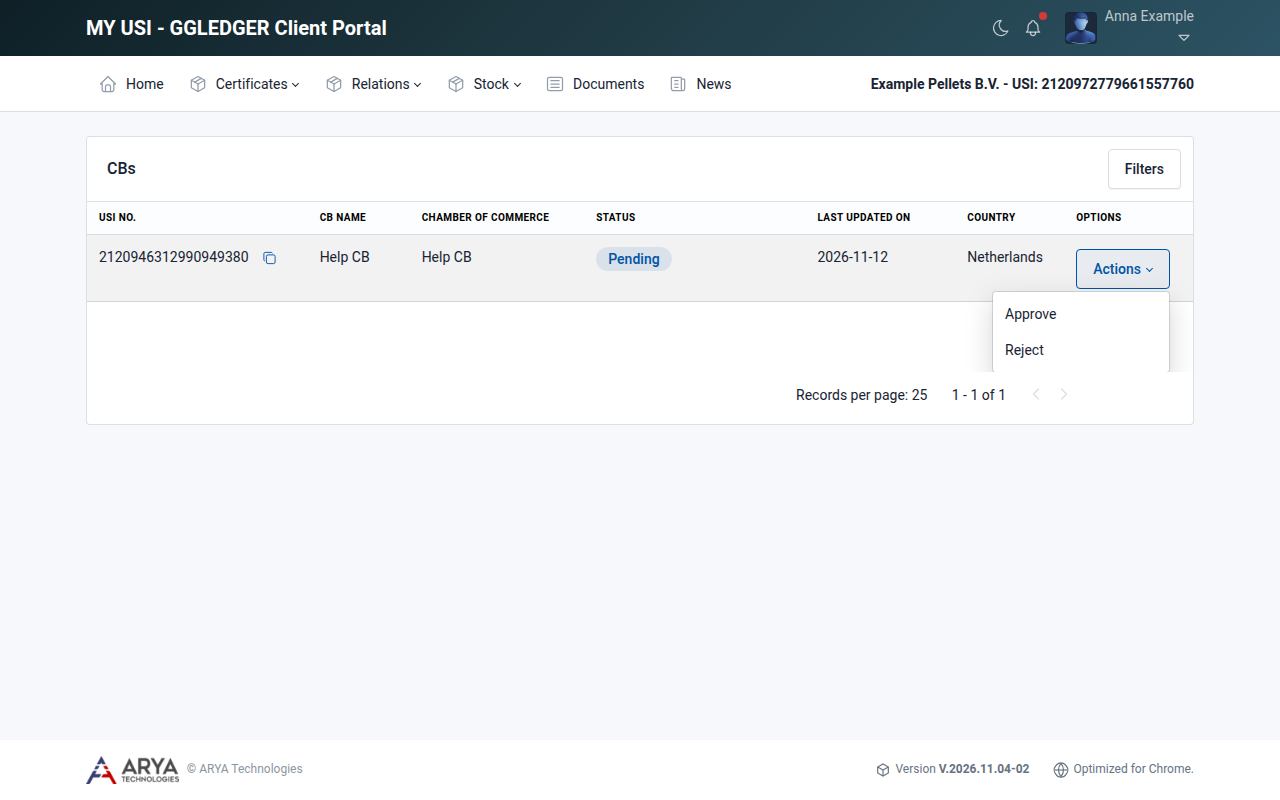
Fig. 7 A pending request of a Certification Body.
Confirm with Yes, approve CB or Yes, reject CB.
Warning
Approving a CB cannot be undone. Check that the request comes from the Certification Body you work with.
After you approve, the status of the CB is Approved and the CB is informed. The CB can now add your scope certificates.
Resign from a Certification Body
Warning
Resigning has far-reaching consequences. When you resign from your CB:
your scope certificates become inactive;
all your requested available stock is set to 0;
you can no longer apply for transaction certificates or product certificates, and you can no longer request stock.
Go to Relations › CBs.
In the row of the CB, select Actions › Resign.
Read the consequences and confirm with Yes, resign CB.