Find your way around
The dashboard
The dashboard is the first page after signing in. Select Home in the menu to return to it from anywhere.
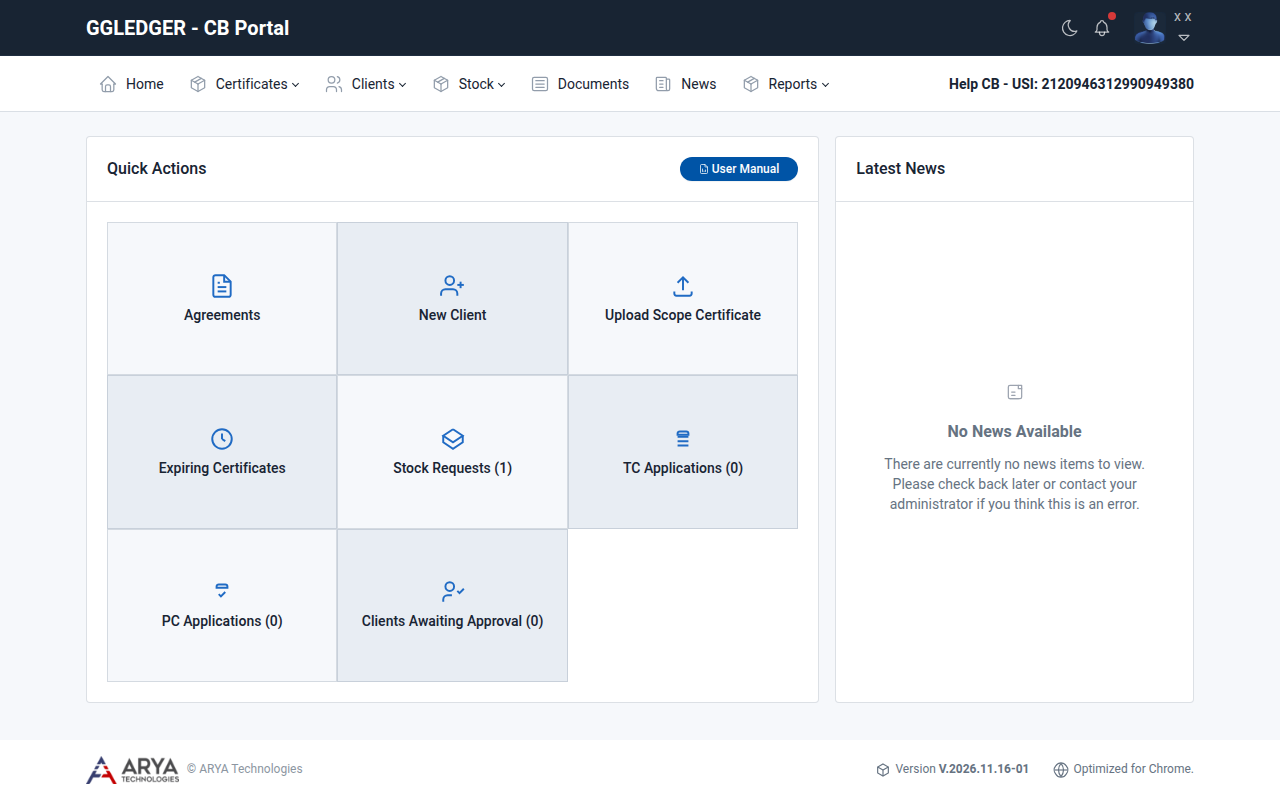
Fig. 2 The dashboard of the CB portal.
The Quick Actions tiles take you to the tasks you need most often. Four of them show, between brackets, how many items are waiting for you:
Tile |
Takes you to |
|---|---|
Agreements |
Your agreement with Green Gold Label. See View your agreement with Green Gold Label. |
New Client |
The registration of a new client. See Register a client. |
Upload Scope Certificate |
Adding a scope certificate for a client. See Manage scope certificates. |
Expiring Certificates |
The scope certificates that are about to expire. |
Stock Requests (n) |
The stock requests waiting for your decision. See Handle stock requests. |
TC Applications (n) |
The transaction certificates waiting for your approval. See Handle transaction certificates. |
PC Applications (n) |
The product certificates waiting for your approval. See Handle product certificates. |
Clients Awaiting Approval (n) |
Clients whose registration is waiting for approval. |
The User Manual button downloads a manual as a PDF file. Latest News shows the news published on the platform.
Your organisation’s name and USI number are shown on the right of the menu bar. The USI number identifies an organisation on the platform.
Notifications
The bell in the top right corner lists your notifications, for example that a client accepted your request. A red dot shows that there are unread notifications. Select a notification to go to the page it is about.
Work with lists
Most pages show a list. All lists work in the same way:
Select a column heading to sort the list by that column.
Select Filters to narrow the list down. Fill in the filter and select Filter; select Clear to show everything again.
Use the icons or the Actions menu in the Options column to open an item or act on it.
At the bottom of the list, choose the number of Records per page and move between pages.
Next to a USI number, the copy icon copies the number to the clipboard.
Light and dark mode
Select the moon icon in the top right corner to switch to dark mode, and the sun icon to switch back.