Handle transaction certificates
A transaction certificate (TC) records the sale of certified biomass from one of your clients to a buyer. The client applies for it; you check the application and approve it, decline it or raise an objection.
When a client submits an application, you receive an email with the subject Action Required: Transaction Certificate Approval Request.
Find the transaction certificates
The transaction certificates of your clients are under Certificates › Transaction:
Menu item |
Shows |
|---|---|
Requested |
Applications waiting for your decision, including those you raised an objection to. |
Approved |
Transaction certificates you approved. |
All |
All of the above. |
To go straight to the applications waiting for you, select TC Applications on the dashboard; the number on the tile shows how many there are.
Each line shows the module, seller, buyer, the date the client applied and the status.
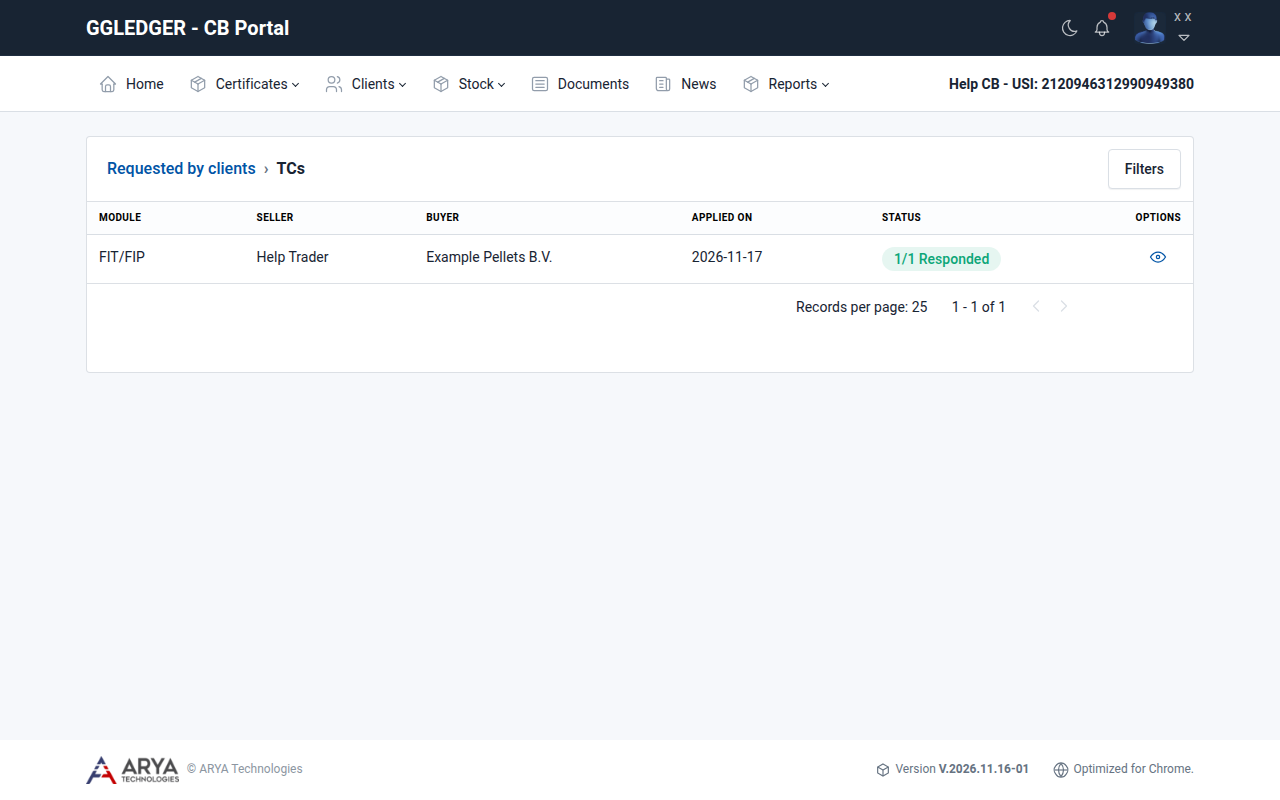
Fig. 22 The list of requested transaction certificates.
The transaction certificates of one client are also on the Transaction certificates tab of the client.
Review an application
Open the application with the view icon in the Options column. It shows all the information the client entered, in sections:
Section |
Shows |
|---|---|
Info |
Seller, CB, buyer, dispatch, destination, status, module, scope certificate and the GGL standards in scope. |
Product info |
Product category, shipment number, product name, quantity, GGL claim and, under the SDE++ module, NTA code. |
Review scope |
The seller’s and the buyer’s certified scope, the outgoing and incoming shipment, and the inputs: the stock the quantity is taken from. |
GHG emissions |
The emissions of the stock, plus the emissions the seller added. |
Transport info |
Dates and places of loading and discharge, and the modes of transport. |
Supporting documents |
The documents the client attached. Select Download to open one. |
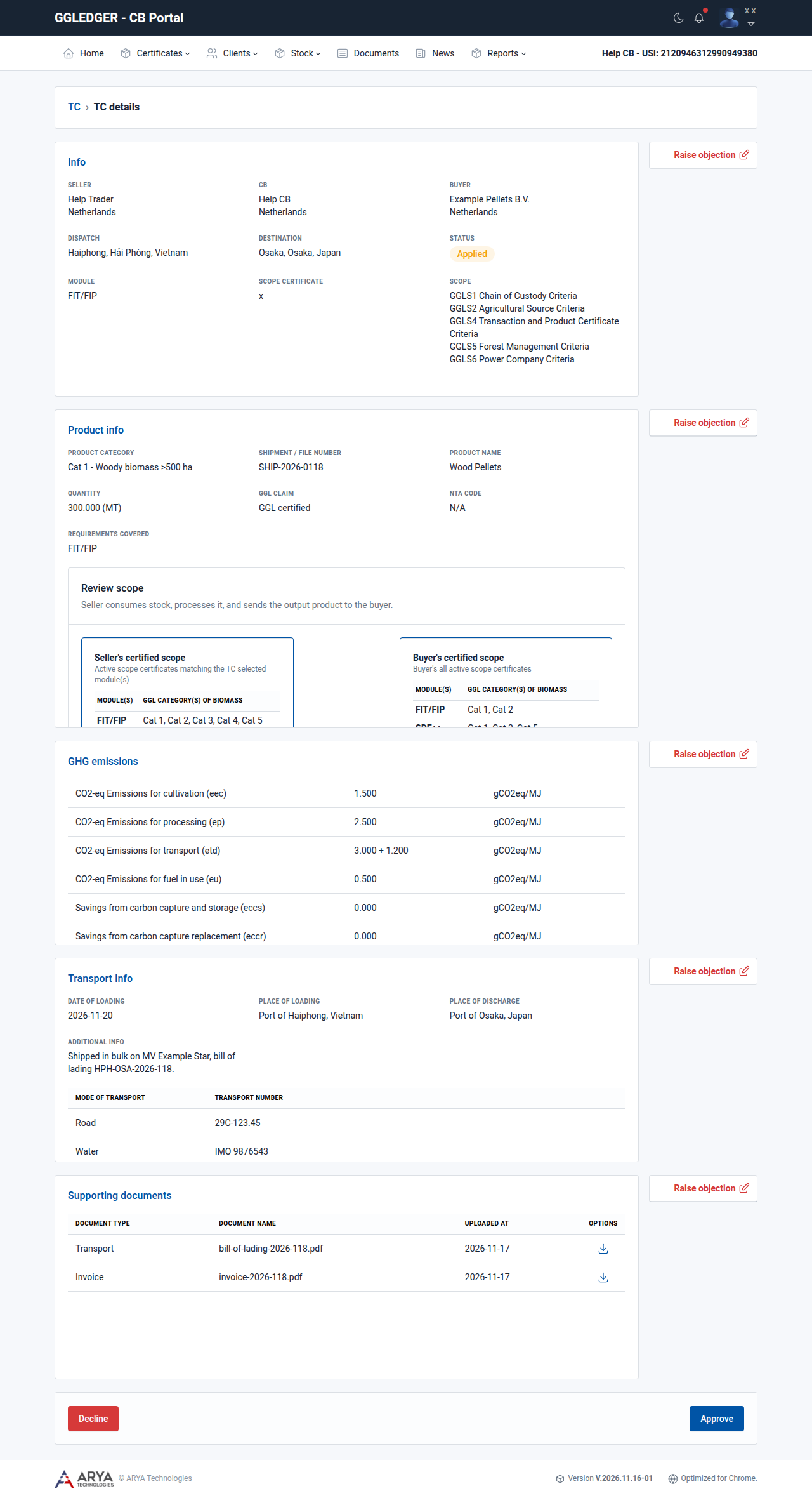
Fig. 23 Reviewing a transaction certificate application.
Raise an objection
If something in the application has to be corrected or explained, raise an objection on the section it concerns.
In the section, select Raise objection.
Enter a Title and a Comment that explains what has to change.
Select New objection.
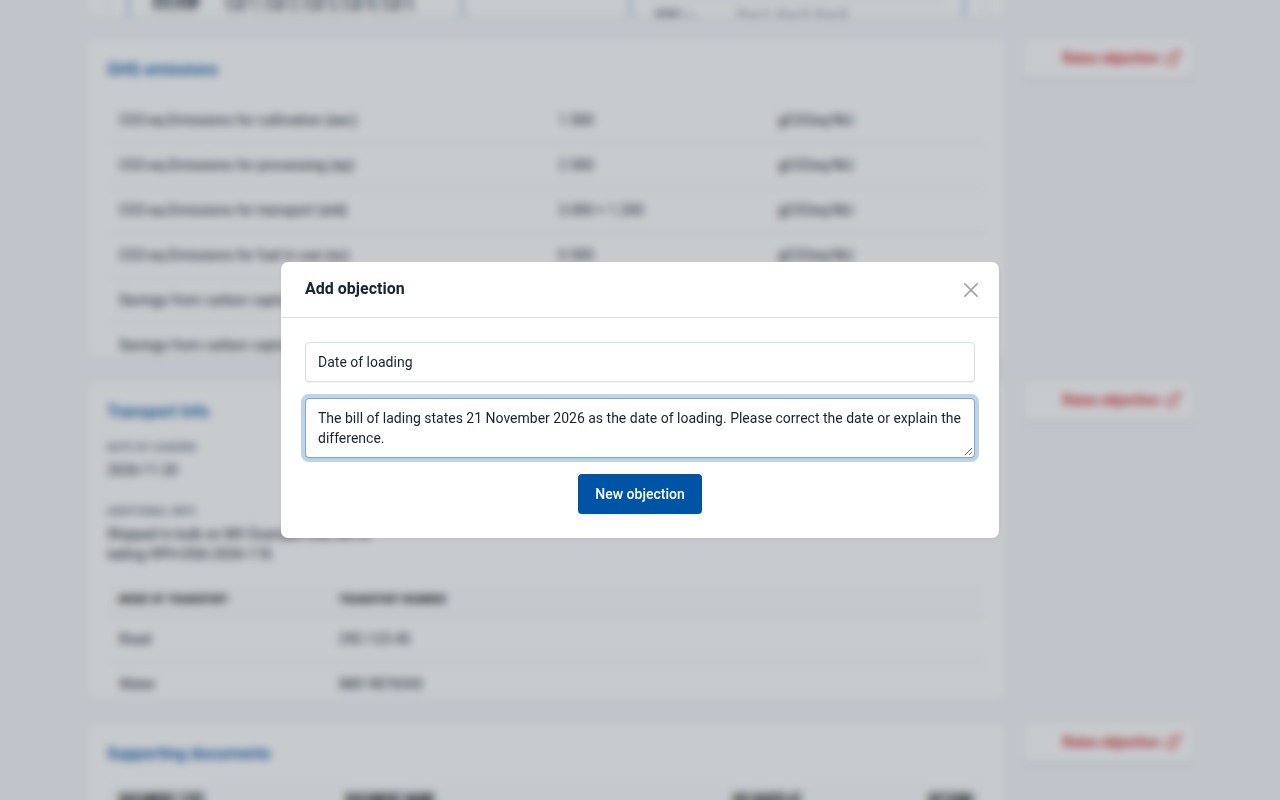
Fig. 24 Raising an objection on the transport details.
The client receives an email with the subject TC: Objection raised. The status of the application becomes Objections. You can raise objections on several sections.
When the client has responded and re-applied, you receive an email with the subject … responded to Objection(s), and the status shows how many objections were responded to, for example 1/1 Responded.
Close an objection
Open the application. Under the section, select the objection.
The dialog shows the objection and all comments, with the newest at the bottom. Select Show newest first to reverse the order.
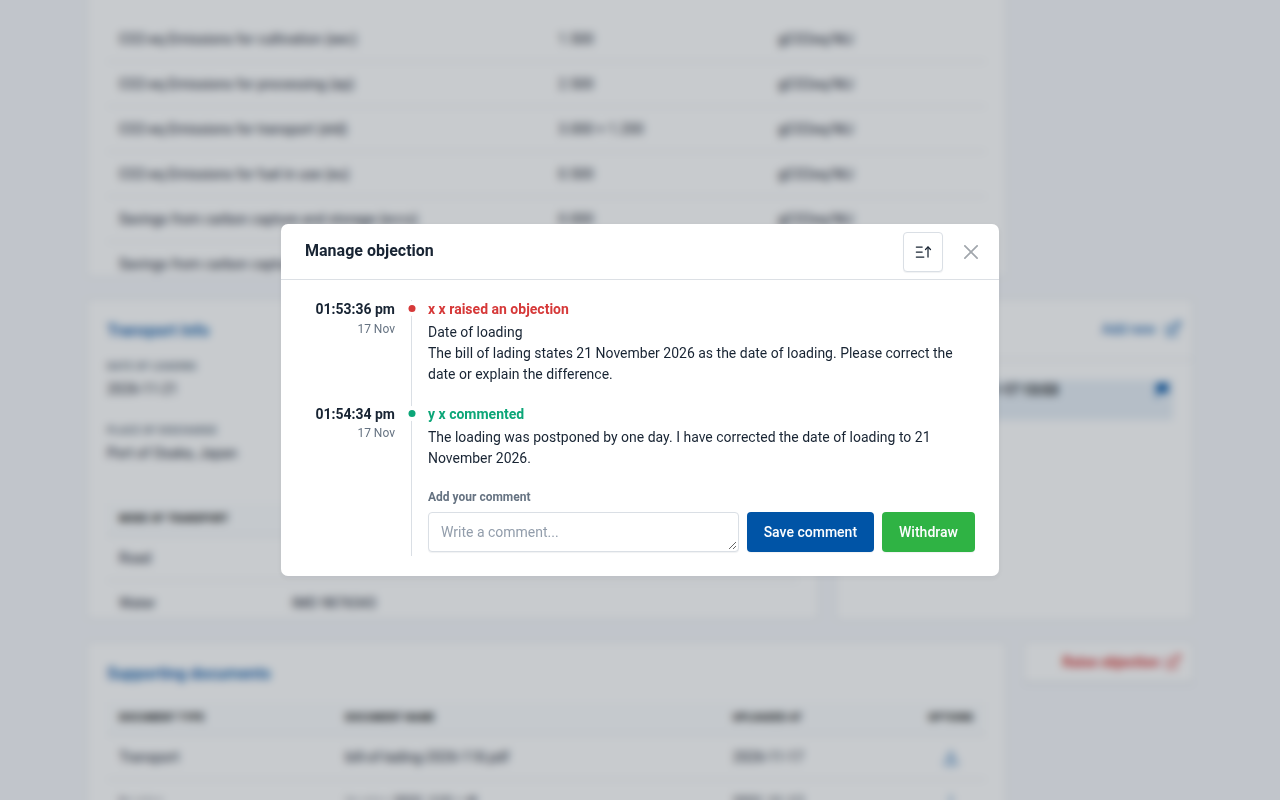
Fig. 25 An objection with the client’s response.
Check whether the client’s response and corrections resolve the objection.
If not, enter your reaction under Add your comment and select Save comment. The client can respond again.
If so, enter a closing comment and select Withdraw. A comment is required. Confirm with Withdraw.
Warning
Once you withdraw an objection, it is closed and no more comments can be added.
The client receives an email that the objection was withdrawn.
Approve a transaction certificate
Open the application and check it.
Select Approve.
If you wish, enter your own reference for the certificate in Enter CB number. It is printed on the certificate as the CB Number.
Select Approve TC.
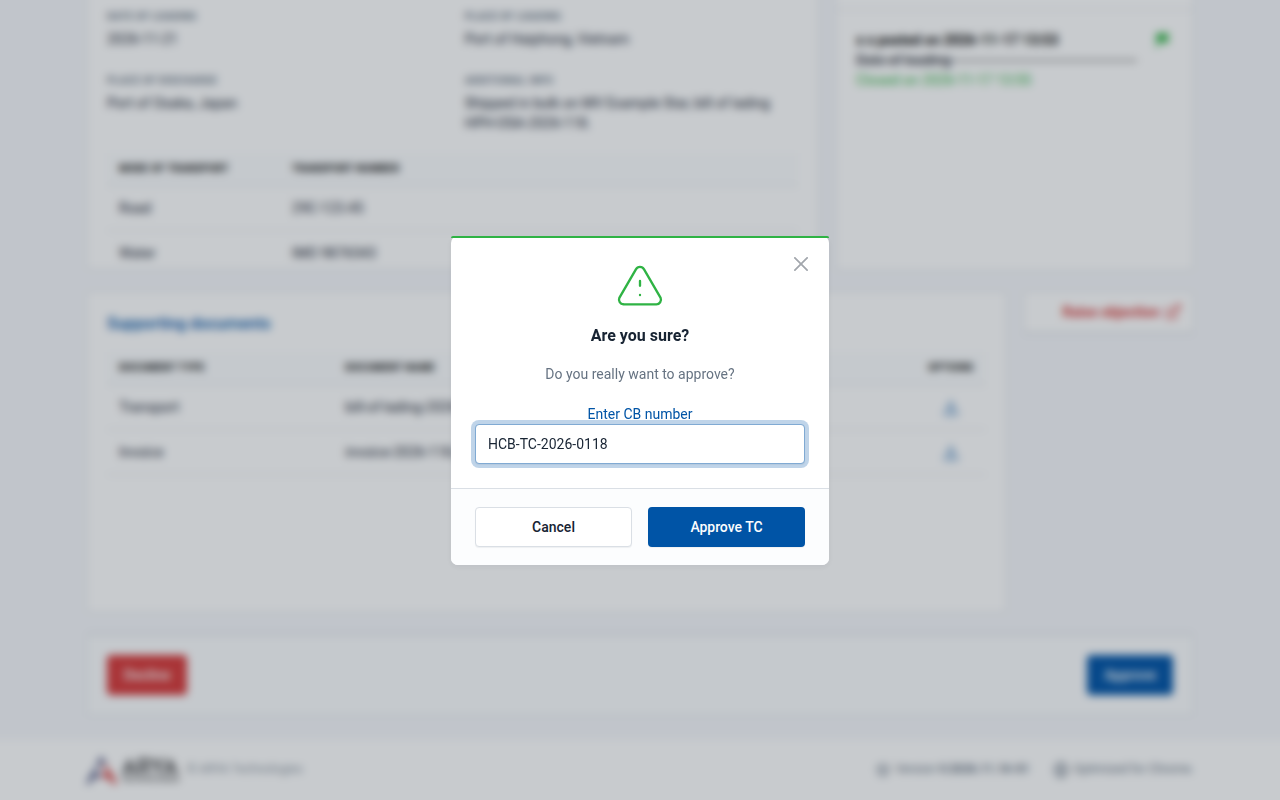
Fig. 26 Approving a transaction certificate.
The certificate gets a TC number and the status Approved. The platform issues the certificate as a PDF document with a blockchain QR code and mails it to the seller and the buyer. The quantity is added to the buyer’s available stock.
Decline a transaction certificate
Open the application.
Select Decline.
Enter your remarks; they are required.
Select Decline TC.
Warning
Declining cannot be undone.