Manage scope certificates
A scope certificate (SC) states for which module and which categories of biomass a client is certified. A client needs an active scope certificate for a module before it can request stock or apply for a transaction certificate under that module. You add one scope certificate for each module.
You can add a scope certificate once the client has approved you as its Certification Body.
Add a scope certificate
Go to Certificates › Scope and select Add new, or select Upload Scope Certificate on the dashboard.
Choose to search by Name or by USI, start typing and select the client from the list that appears.
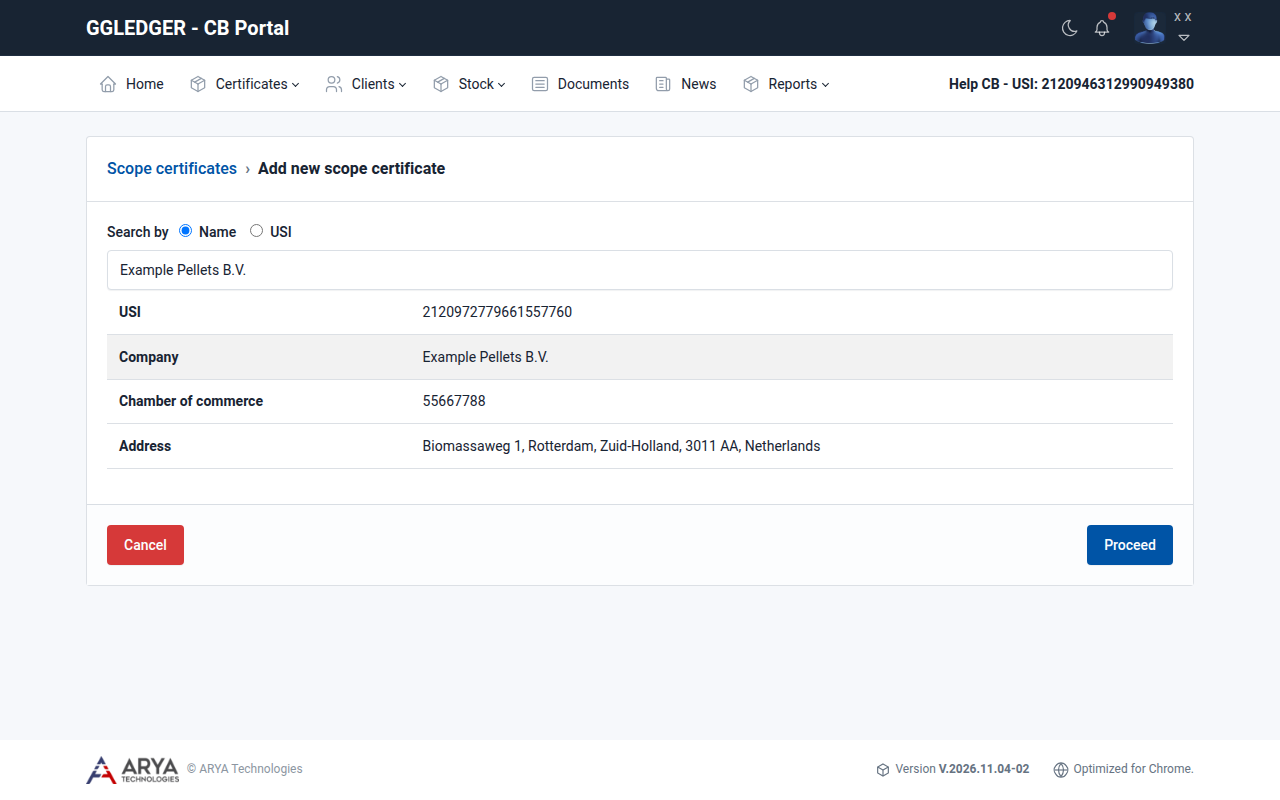
Fig. 13 Selecting the client for a new scope certificate.
Select Proceed.
Fill in the form. All fields are required.
Field
What to enter
Certificate no.
The number of the scope certificate.
Date of issue
The date the certificate was issued.
Valid from, Valid up to
The validity period of the certificate.
Modules
The module the certificate is for: FIT/FIP, RED II or SDE++.
GGL Categories of Biomass
The categories the client is certified for, Cat 1 to Cat 5.
GGL Standards
The GGL standards the client is certified against, GGLS1 to GGLS6.
GGL module instructions
The version of each instruction that applies. The instructions are listed after you choose the module. Clear Selection removes your choice.
Activities
A description of the certified activities.
Attach scope certificate copy
The certificate as one PDF file of at most 10 MB.
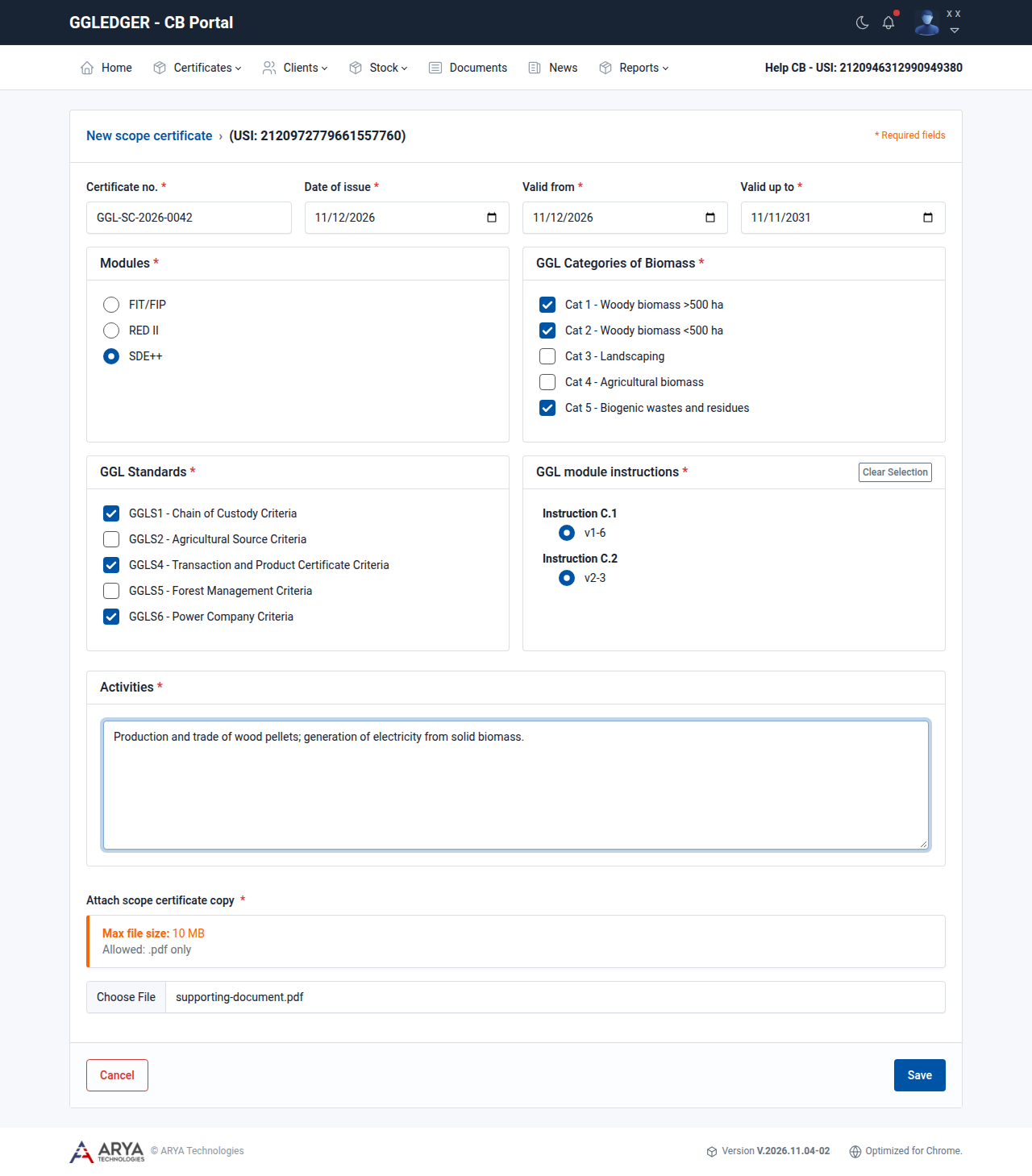
Fig. 14 Adding a scope certificate.
Select Save. The button becomes available when all fields are filled in.
The certificate appears in the list with the status Active, and the client can see it in its own portal.
Tip
Select the round or square box itself, not the text next to it. Selecting the text does not select the option.
View a scope certificate
Go to Certificates › Scope.
The list shows each certificate with its number, client, module, validity period, date of issue and status.
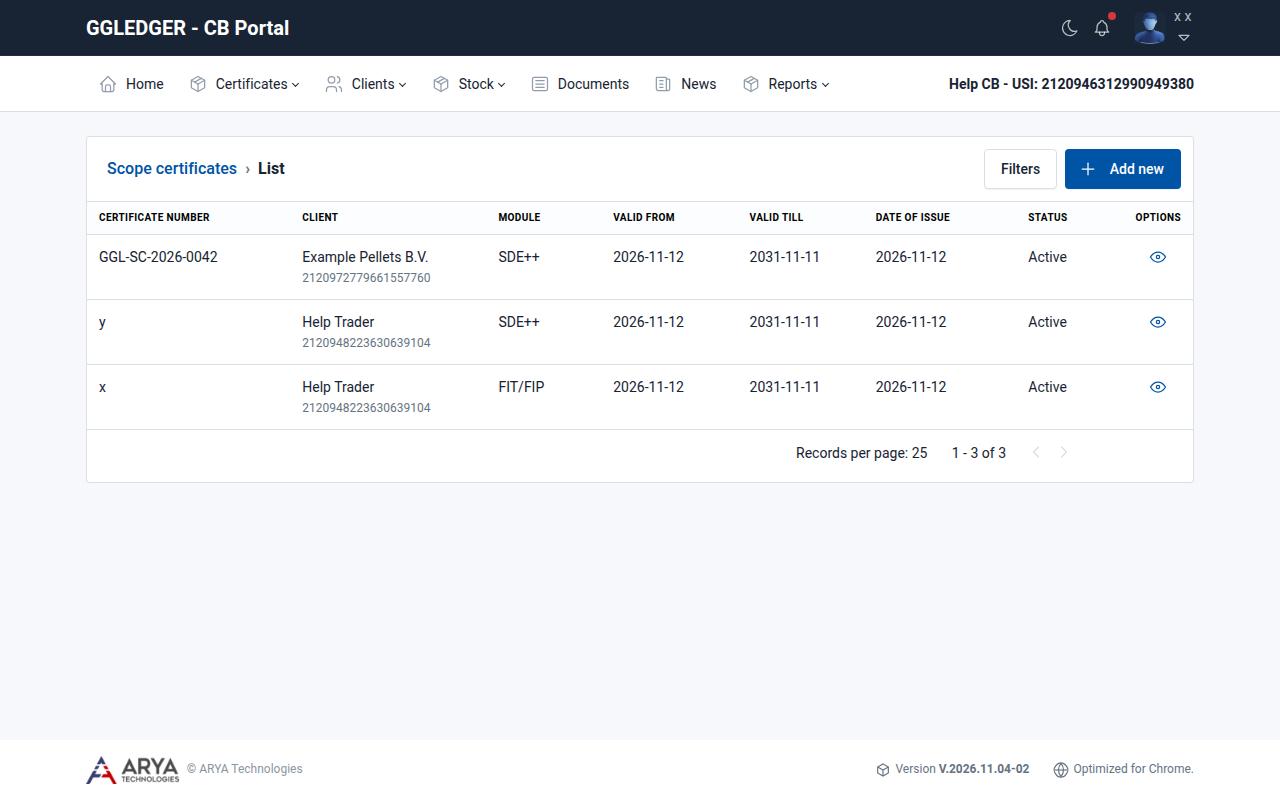
Fig. 15 The scope certificates list.
Select the view icon in the Options column.
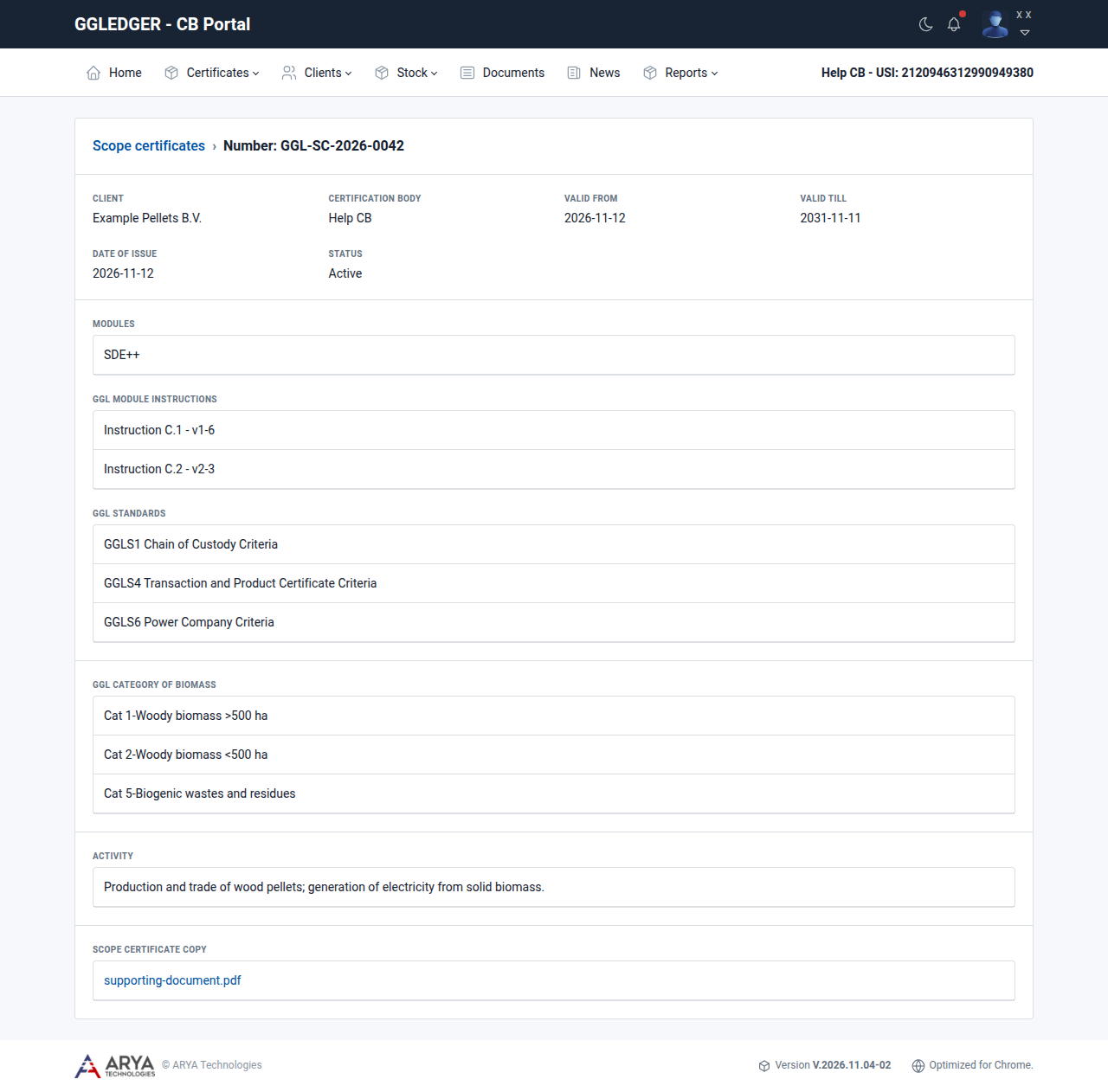
Fig. 16 The details of a scope certificate.
You can also open the scope certificates of one client from the Scope certificates tab of the client.
Replace a scope certificate
Replace a scope certificate when it is renewed or reissued.
Open the client.
On the Scope certificates tab, select Actions › Replace in the row of the certificate.
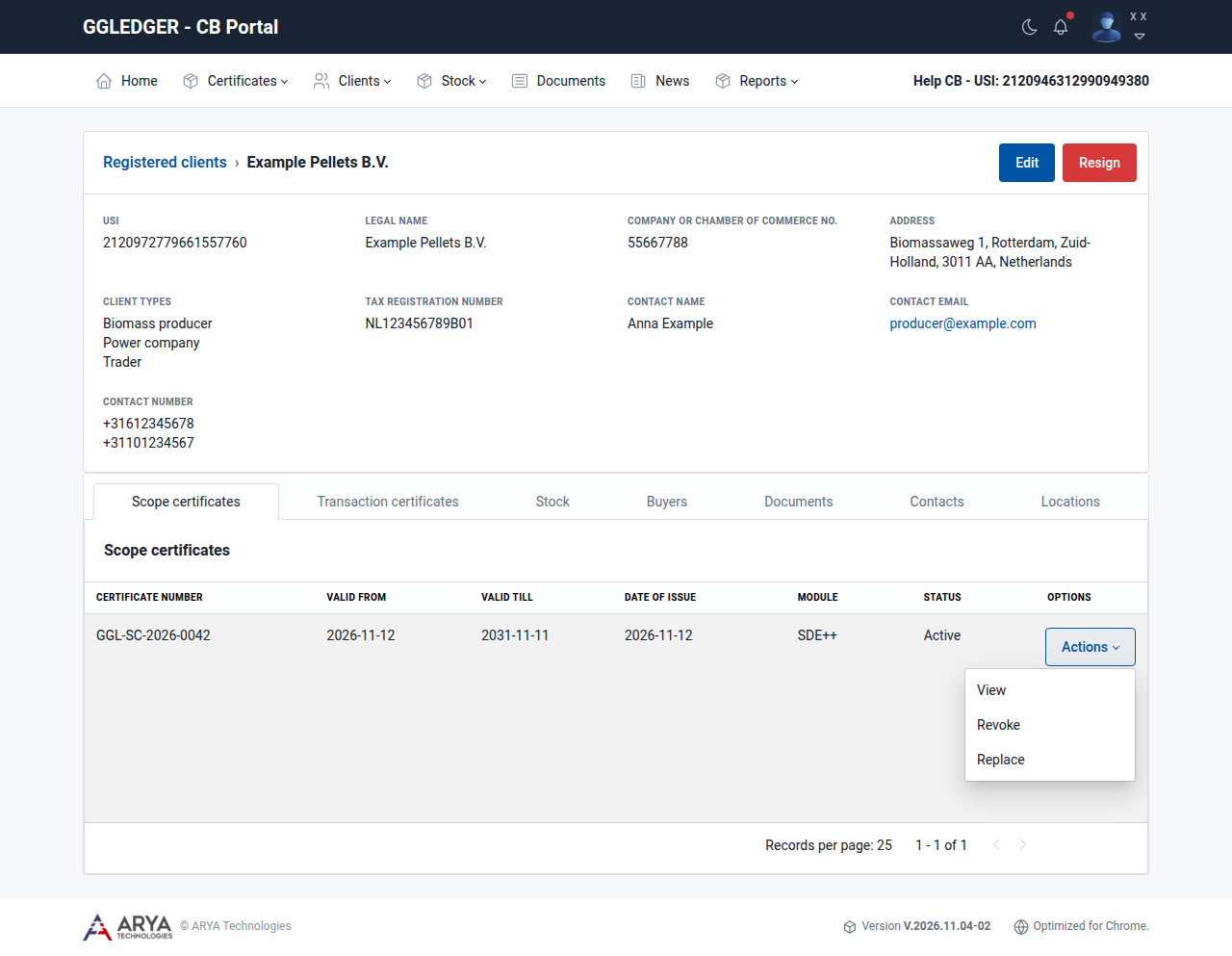
Fig. 17 The Actions menu of a scope certificate.
A new scope certificate form opens for the same client and module, with the validity period of the current certificate filled in. Complete the form as described in Add a scope certificate and select Save.
Revoke a scope certificate
Warning
Revoking cannot be undone. The certification of the client is revoked for the module of the certificate, and the client can no longer trade or produce certified stock under that module.
Open the client.
On the Scope certificates tab, select Actions › Revoke in the row of the certificate.
Read the consequences and confirm with Revoke.
See which scope certificates are about to expire
On the dashboard, select Expiring Certificates. The list shows the certificates that are about to expire, with their client, validity period and module.