Handle stock requests
Before a client can sell certified biomass on the platform, the biomass has to be registered as the client’s stock. The client lists the biomass it holds in a stock request and attaches the evidence. You check the request and approve or decline each quantity. Approved quantities become the client’s available stock.
Find the stock requests
Go to Stock › Requested. To see only the requests waiting for your decision, select Stock Requests on the dashboard; the number on the tile shows how many there are.
The list shows each request with the client that requested it, the date, the requested quantity, the quantities you approved and declined, and the status.
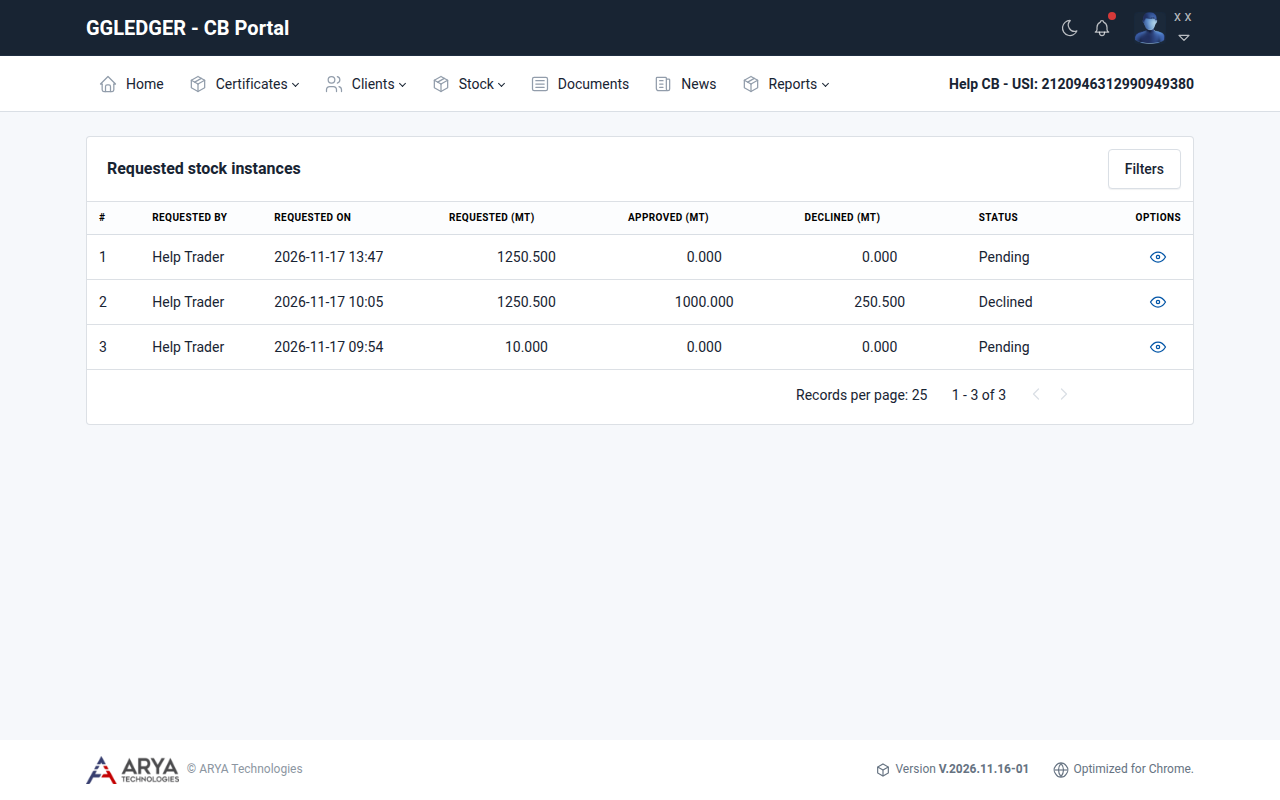
Fig. 18 The list of stock requests.
When a client submits a stock request, you receive an email with the subject Request for Stock Approval.
Approve or decline a stock request
You decide on each line of a request separately. You can approve some lines and decline others.
Open the request with the view icon in the Options column.
The request shows each line with the requested biomass, its origin, supplier, quantity, GGL claim and GHG emissions, and below it the supporting documents the client attached. Select the icon in the Options column of a document to download it.
Select the lines you want to approve. The checkbox in the heading selects all lines at once.
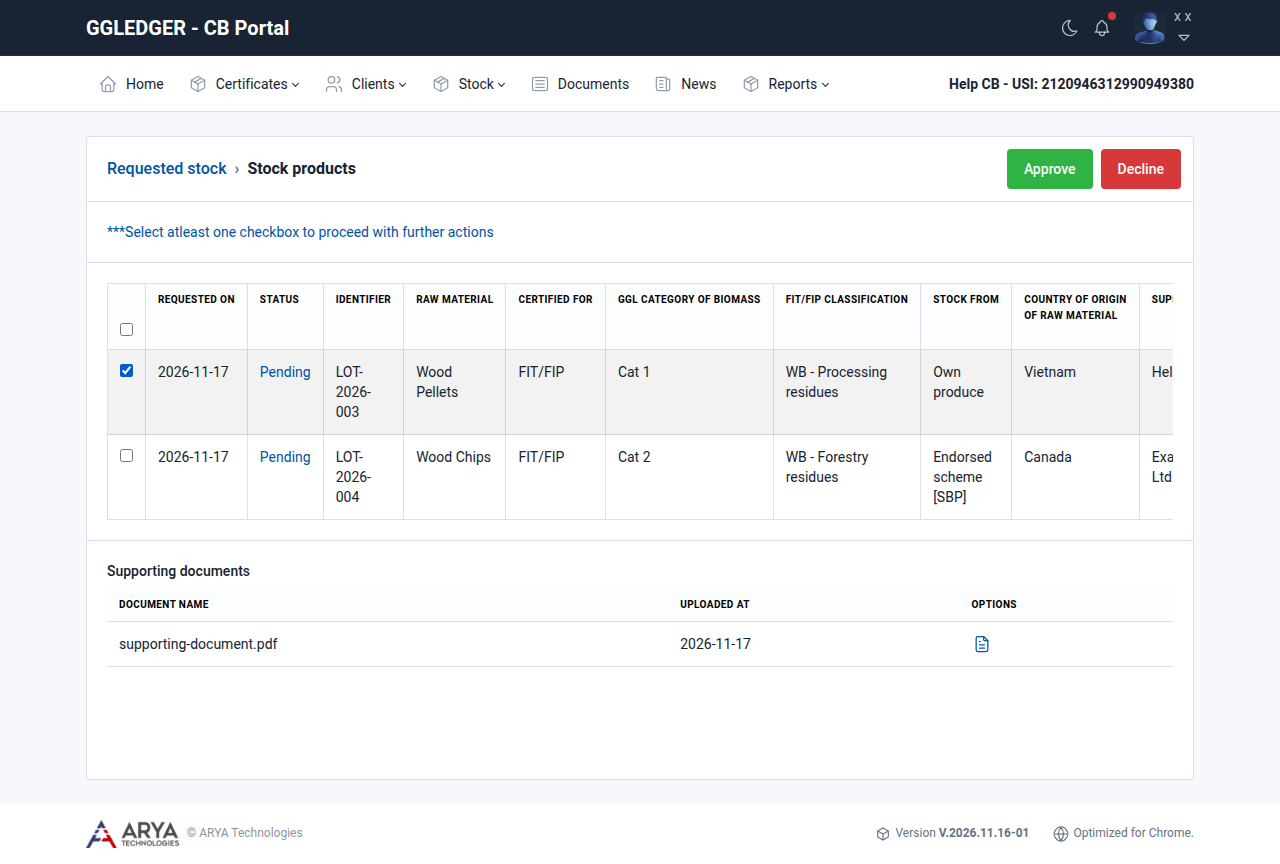
Fig. 19 A stock request with the first line selected.
Select Approve and confirm with Approve.
Select the lines you want to decline, select Decline, enter a remark that explains why, and confirm with Decline. The client sees your remark with the declined line.
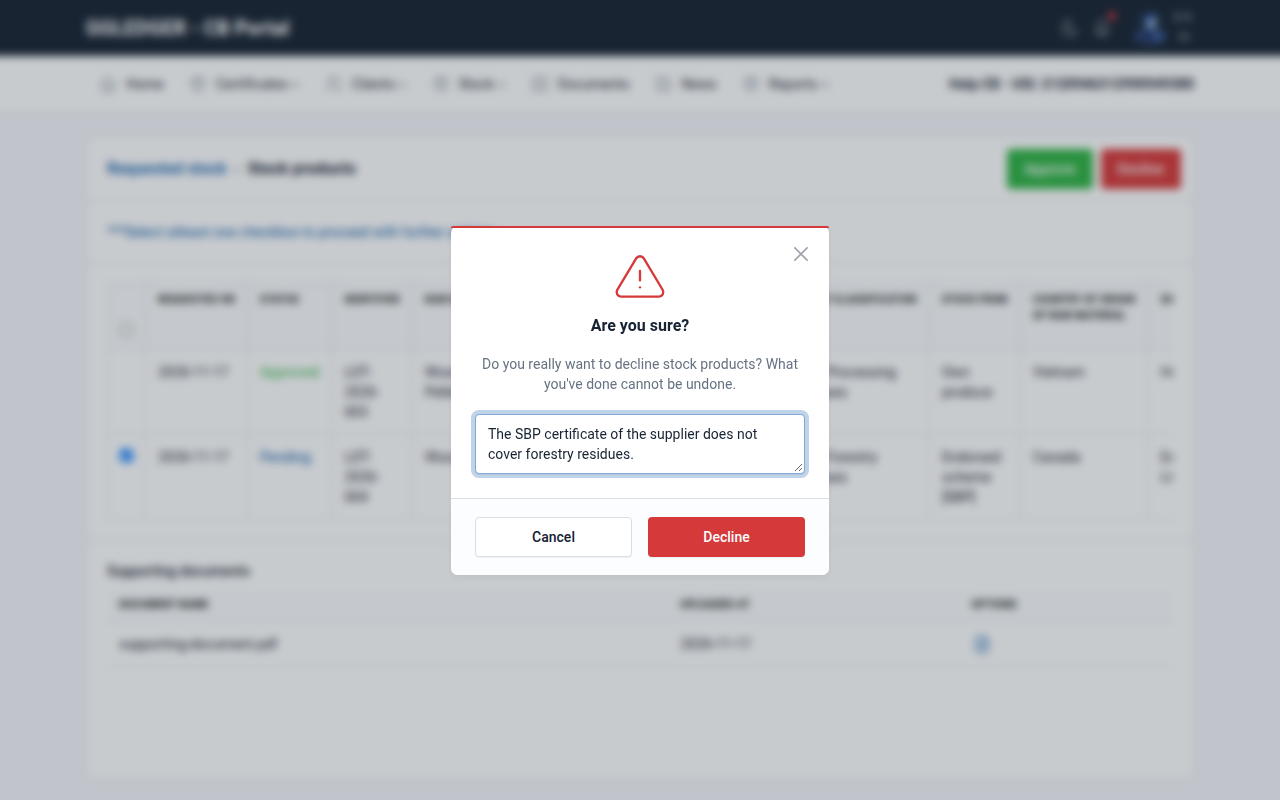
Fig. 20 Declining a line with a remark.
Warning
Approving and declining cannot be undone.
The status of each line changes to Approved or Declined. Approved quantities are added to the client’s available stock straight away. When all lines are decided, the client receives an email that the request has been processed. The client can re-apply for declined lines.
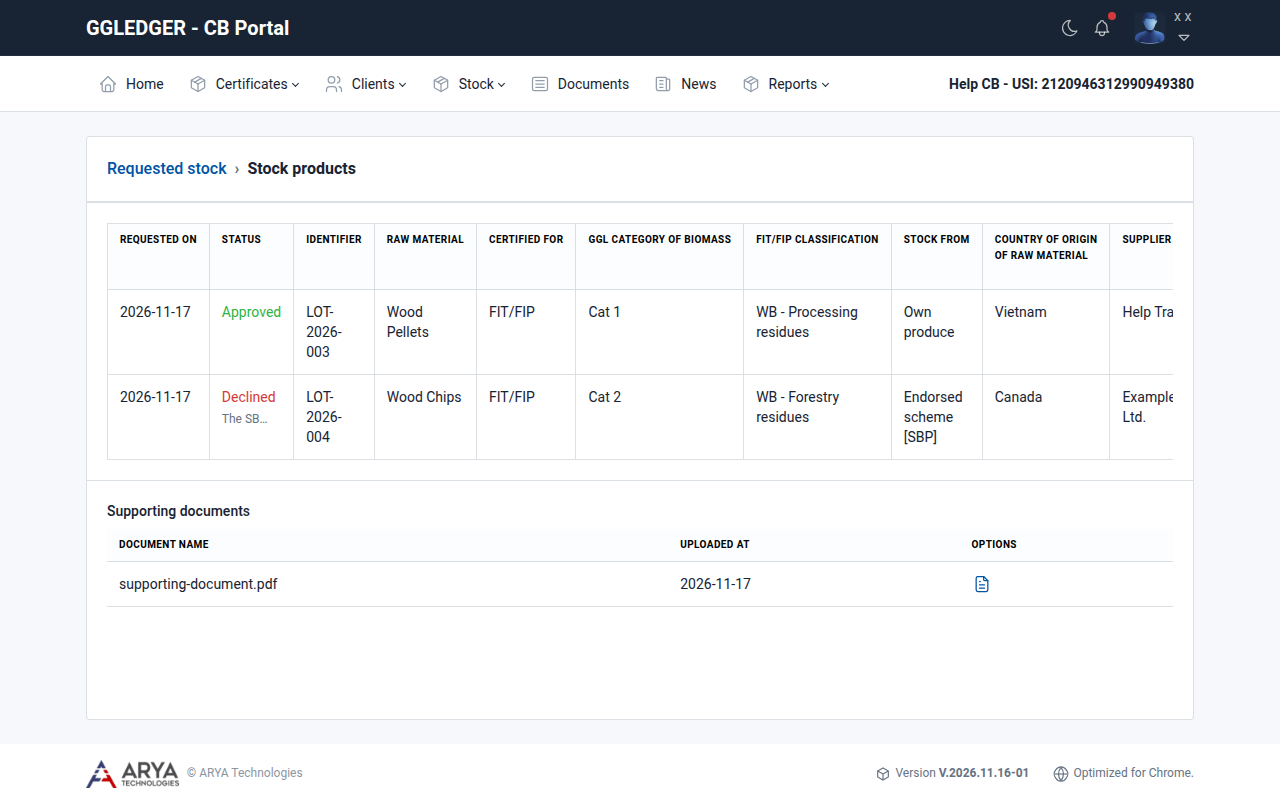
Fig. 21 A handled stock request.
View a client’s stock
Open the client and select the Stock tab. Select the view icon of a line to see its stock statement: every movement in and out of that line, with the date, the document reference, the lot, and the incoming, outgoing and remaining quantities.
When a client drains stock, for example as self-consumed, you receive an email with the subject Stock depletion from Client.