Manage your clients
Find a client
Your clients are under Clients, grouped by the status of their link with you:
Menu item |
Shows |
|---|---|
Registered |
Clients that approved you as their Certification Body. |
Pending |
Companies you registered that did not answer your request yet. |
Rejected |
Companies that rejected your request. |
Resigned |
Clients whose link with you has ended. |
Archived |
Archived clients. |
The list of registered clients shows, for each client, the USI number, the name, the country, the number of scope certificates (SC) and transaction certificates (TC), and in the Stock column whether the client has stock available.
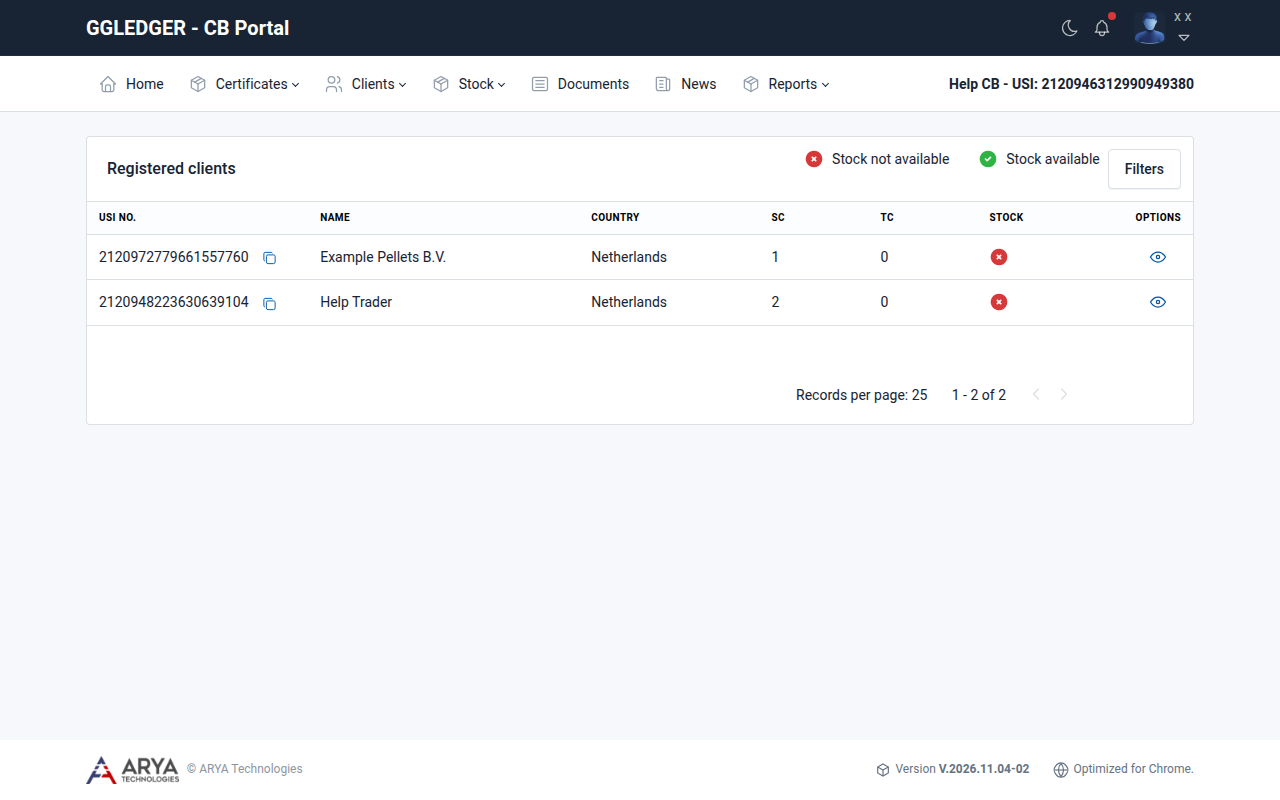
Fig. 8 The list of registered clients.
Select the view icon in the Options column to open a client.
View a client
The details of a client show the USI number, the legal name, the registration and tax numbers, the address, the client types and the contact person. Below it are tabs:
Tab |
Shows |
|---|---|
Scope certificates |
The scope certificates of the client. From the Actions menu of a certificate you can view, revoke or replace it; see Manage scope certificates. |
Transaction certificates |
The transaction certificates the client applied for. |
Stock |
The stock the client has available, by product, category, origin and module. |
Buyers |
The buyers of the client, split into certified and non-certified buyers. |
Documents |
The documents of the client, such as the chamber of commerce registration. |
Contacts |
The contact persons of the client. |
Locations |
The business locations of the client. |
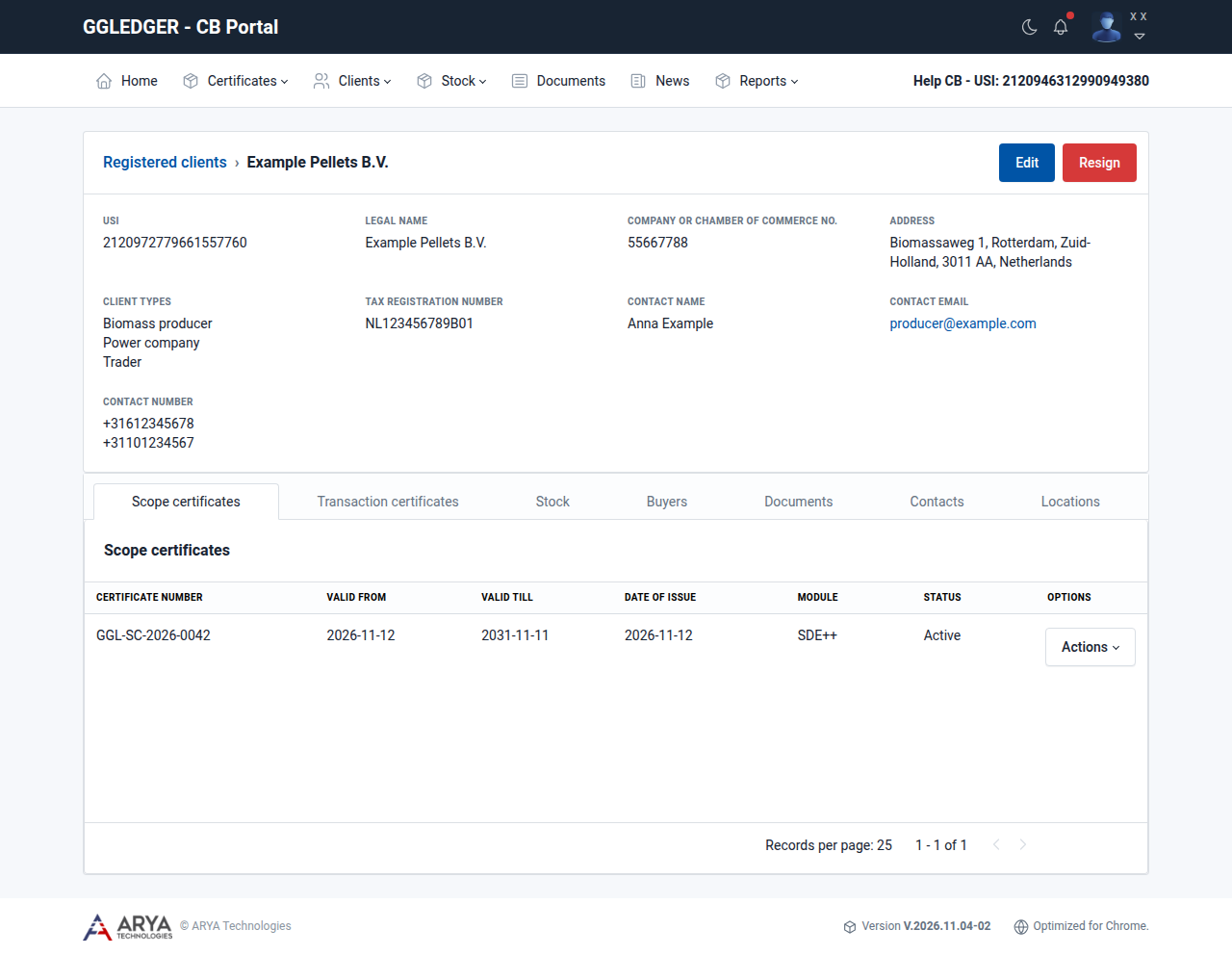
Fig. 9 The details of a client.
Change the details of a client
Open the client and select Edit.
Change the legal name, registration number, tax registration number, language or client types.
Select Submit.
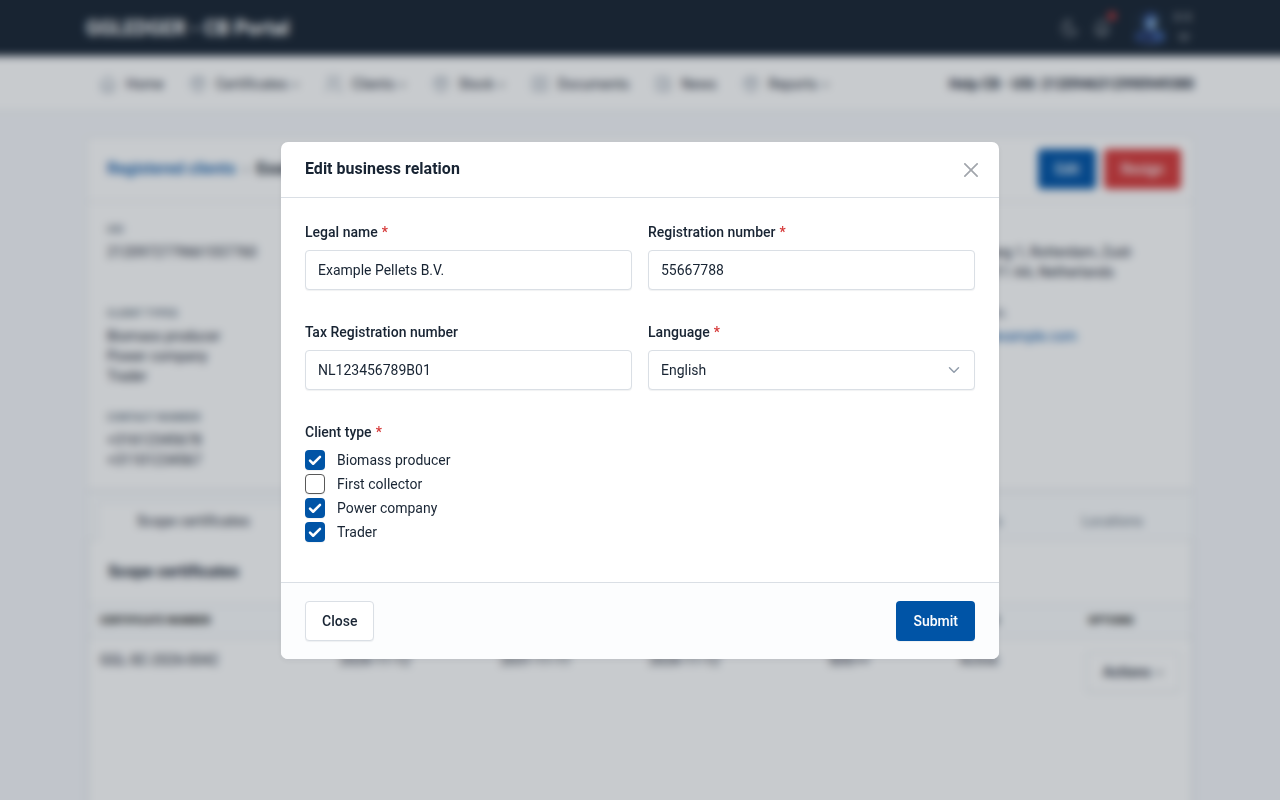
Fig. 10 Changing the details of a client.
Add or change a contact person
Open the client and select the Contacts tab.
Select Add new, or select Edit in the row of an existing contact.
Enter the salutation, first name, last name, designation, email address, mobile and telephone number, and indicate whether the contact is active.
Select Submit.
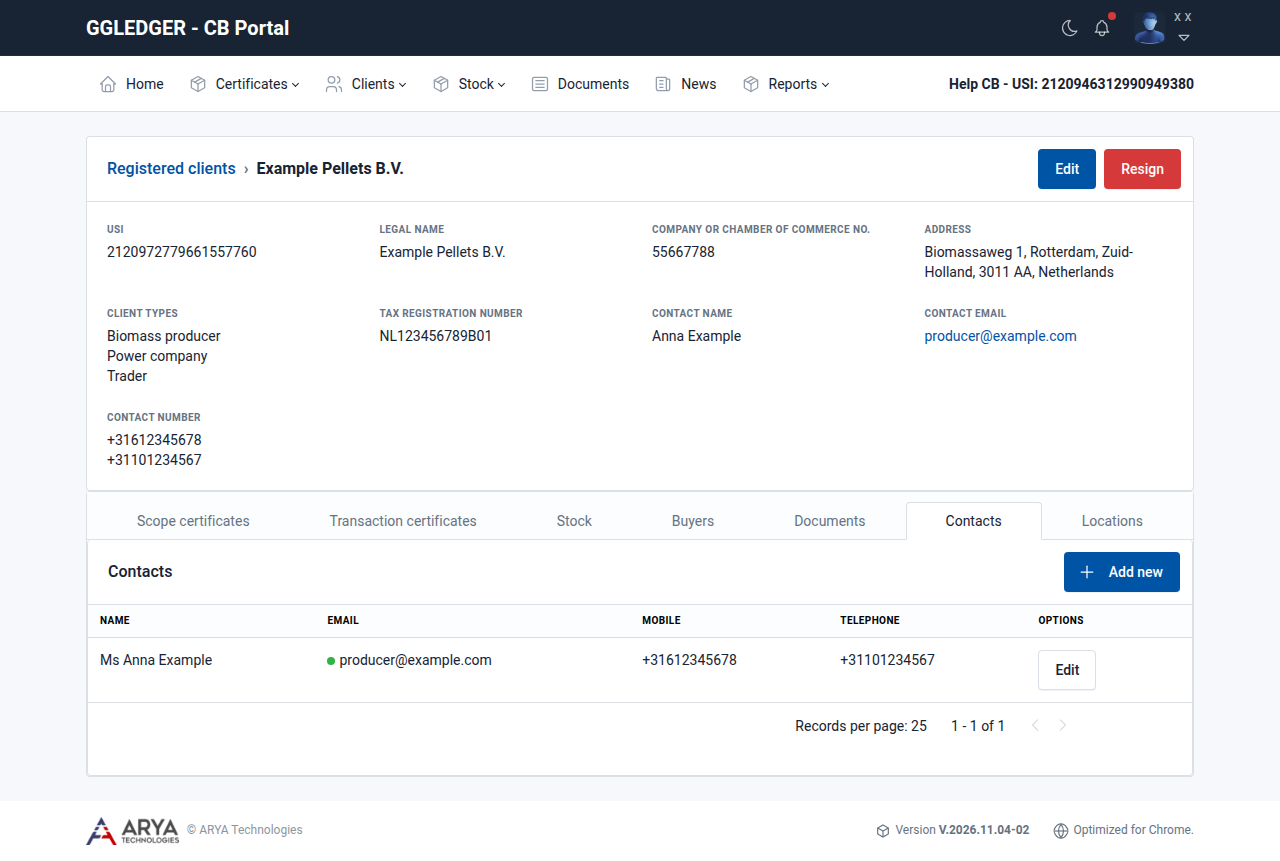
Fig. 11 The contact persons of a client.
Add or change a business location
Open the client and select the Locations tab.
Select Add new, or select Edit in the row of an existing location.
Choose the Address type: Registered, Billing, Shipping or Contracting.
Enter the address, town, district, postal code, country, state and city.
Select Save.
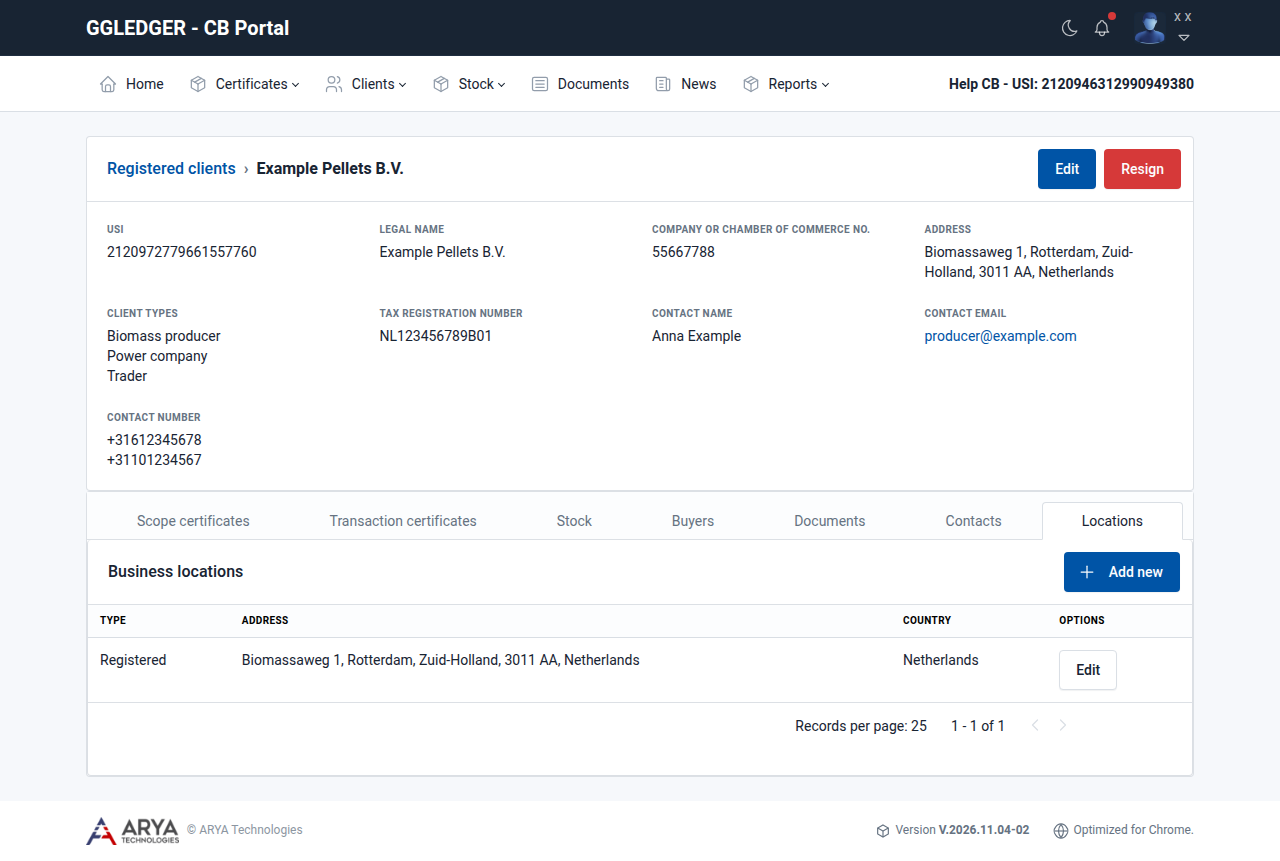
Fig. 12 The business locations of a client.
End the link with a client
Warning
Resigning a client has far-reaching consequences for the client:
the client’s scope certificates become inactive;
all requested available stock of the client is set to 0;
the client can no longer apply for transaction certificates or product certificates, and can no longer request stock.
Open the client and select Resign.
Read the consequences and confirm with Yes, resign client.
The client is then listed under Clients › Resigned.
Non-certified buyers
Clients › Non certified buyers lists the buyers your clients registered themselves, with the client (seller) that registered each buyer. These companies are not your clients.