Register a client
A client is a company you certify. Before you can add a scope certificate for a company, the company has to be your client on the platform. That takes two steps: you register the company, and the company approves you as its Certification Body.
There are two ways to register a client. If the company already has a USI number, link the existing company. If not, register the company.
Register a new company
Go to Clients › Register new, or select New Client on the dashboard.
At Already USI registered ?, select No.
Fill in the form:
Section
Fields
Client type
One or more of Biomass producer, First collector, Power company and Trader.
Company
Legal name, company or chamber of commerce number, tax registration number, default language and default currency.
Address
Registered address, town, district, postal code and country. State and city become available after you choose a country.
Contact person
Salutation, first name, last name, designation, email address, mobile and telephone number.
Required documents
The chamber of commerce registration of the company.
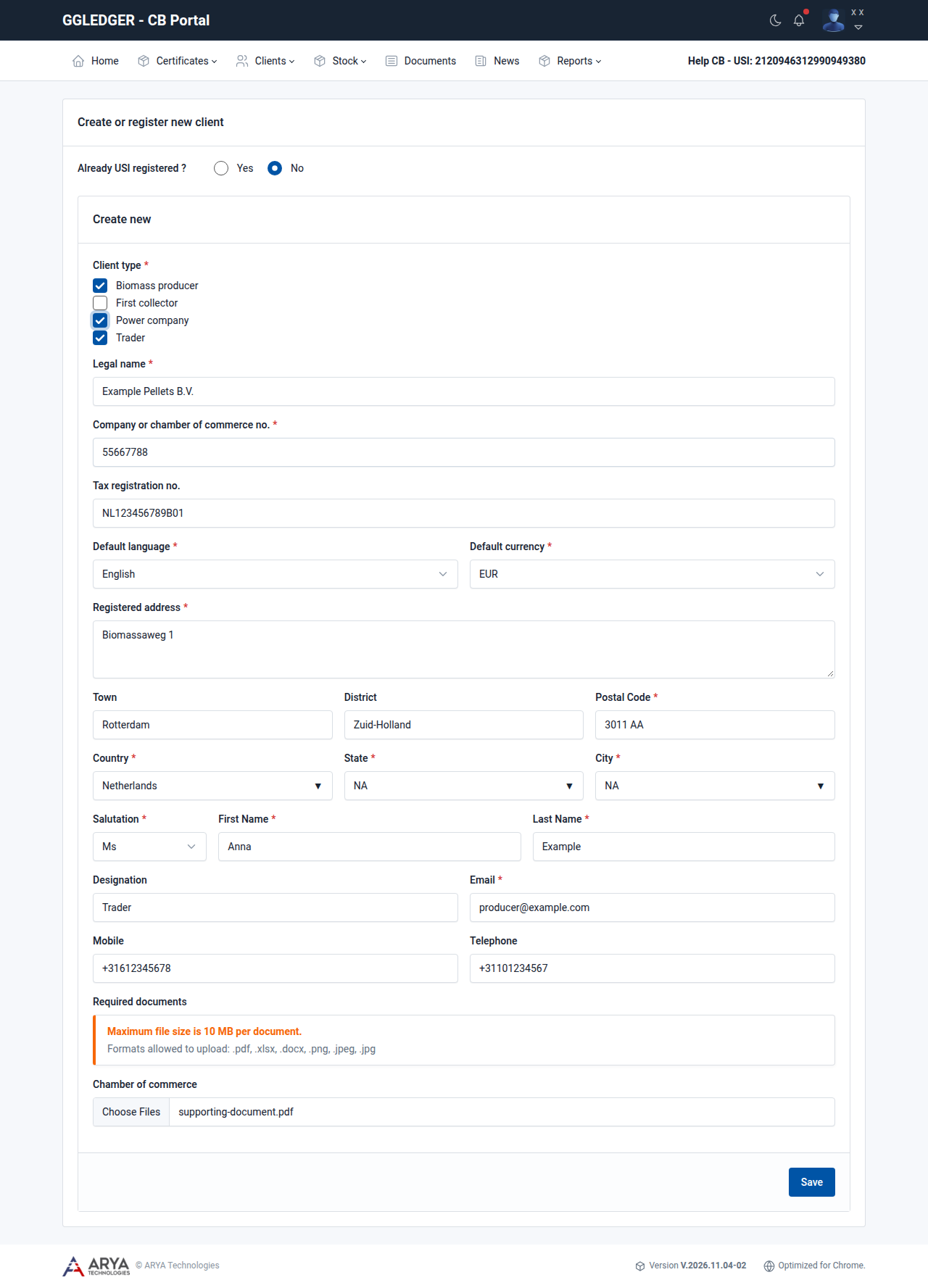
Fig. 6 Registering a new client.
Select Save.
The platform confirms that the request is sent to the participant and shows the USI number the company received.
Important
Take care with the email address of the contact person. The activation link for the client’s account is sent to this address, and the contact person signs in with it.
Note
A company can only be registered once. If the combination of registration number and country already exists, the message Registration number with the country is already registered in GGL appears. In that case the company already has a USI number: ask for it and link the company instead.
Documents can be at most 10 MB each. The allowed formats are .pdf, .xlsx, .docx, .png, .jpeg and .jpg.
Link a company that is already registered
Ask the company for its USI number. It is shown on the right of the menu bar when the company is signed in.
Go to Clients › Register new.
At Already USI registered ?, leave Yes selected.
Enter the USI number in Search and select Search.
The details of the company are shown. If the number is not known, the message Invalid USI ID appears.
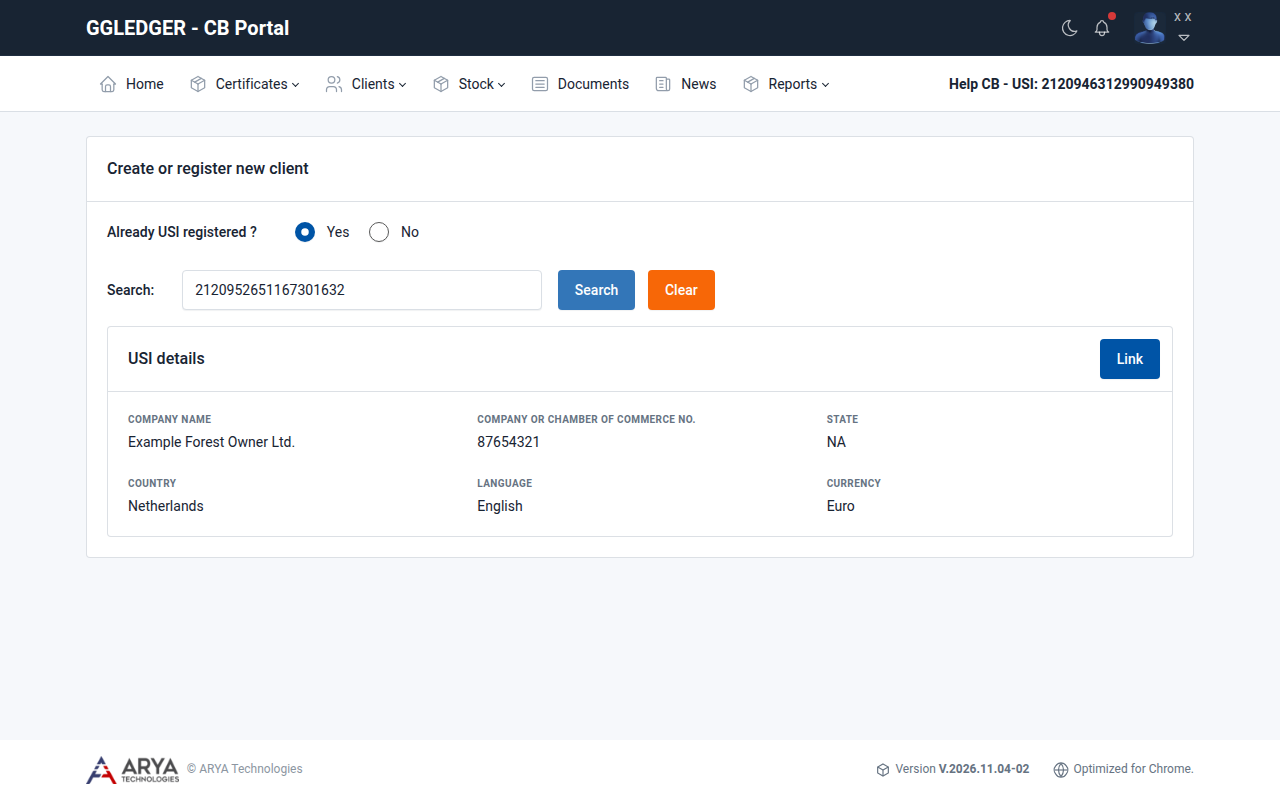
Fig. 7 The company found for a USI number.
Check that this is the right company, select Link and confirm.
What happens next
The contact person of the company receives two emails: one with a link to activate the account, and one asking to accept your request.
Until the company answers, it is listed under Clients › Pending.
When the company approves your request, you receive a notification and an email with the subject Green Gold Label - Request Accepted. The company moves to Clients › Registered, and you can add its scope certificates.
If the company rejects your request, it is listed under Clients › Rejected.